Opening balances
Where: Accounting → Masters → Opening Balances.
If you are moving from another system, your books do not start at zero. Opening balances bring in the trial balance as at your go-live date, in one Excel file.
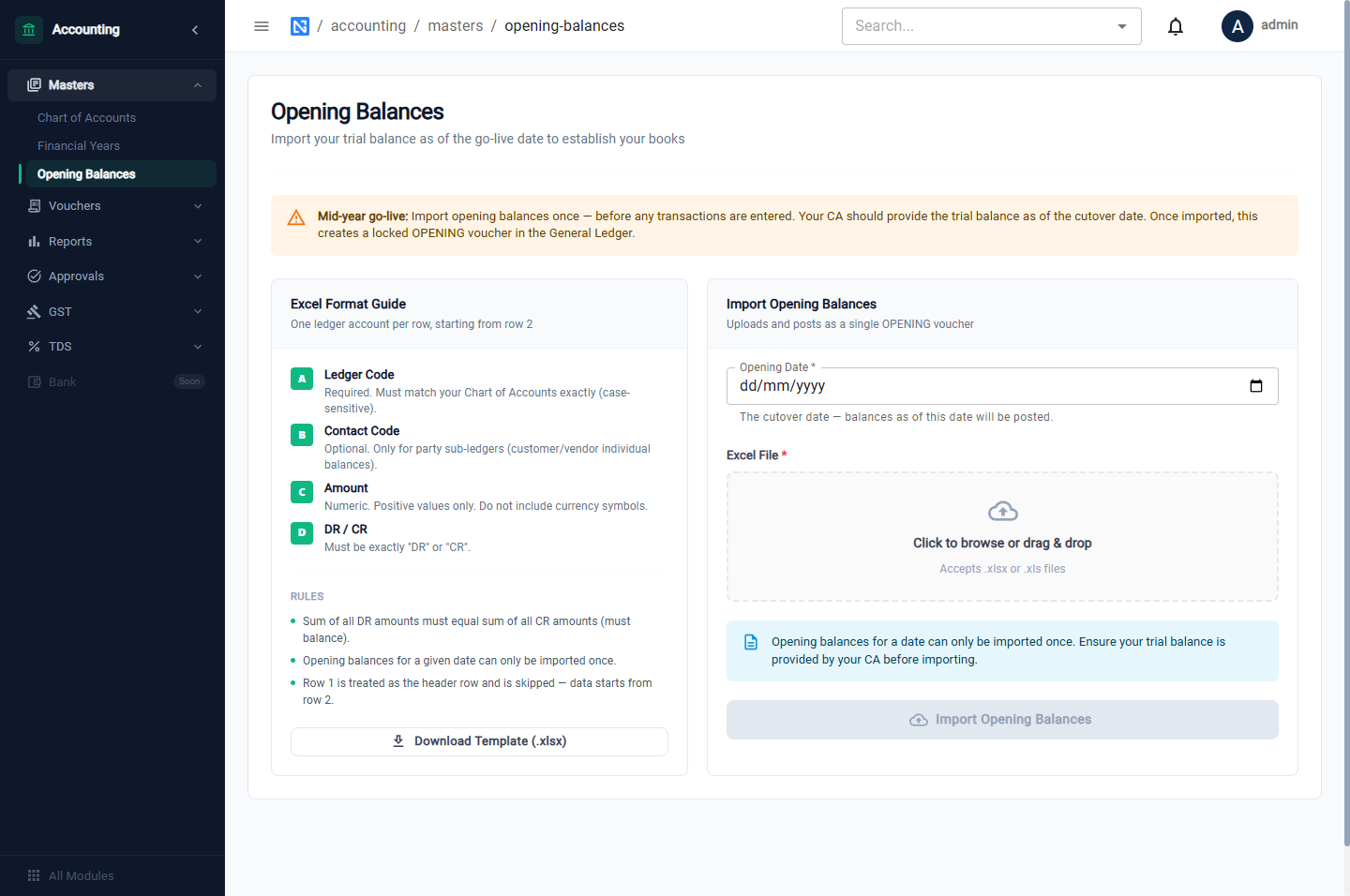
Prepare the file
Click Download Template (.xlsx). The file has one row per account, starting from row 2.
| Column | What to enter |
|---|---|
| Ledger Code | Required. It must match a code in your chart of accounts exactly |
| Contact Code | Only for customers and vendors: the contact's code, on a row whose ledger is Sundry Debtors or Sundry Creditors |
| Amount | A positive number, with no currency symbol |
| DR / CR | DR or CR |
Rules:
- The total of the DR rows must equal the total of the CR rows.
- A date can be imported once.
- Do not include stock. Opening stock is loaded through Inventory, which posts it to the ledger itself.
:::caution Check the file before importing Ask your accountant for the trial balance as at the go-live date and check that every Ledger Code and every Contact Code exists in NextGenManager. A Contact Code that is not found is refused (Contact not found: C-999), so nothing is posted until the file is right. :::
If a wrong file does get imported, reverse its Opening voucher from the Voucher Register. That frees the date, and a corrected file can then be imported for it.
Import
- Choose the Opening Date — the cut-over date; the balances are posted as at this date.
- Click the upload area and choose the Excel file. The file name appears with a Remove button.
- Click Import Opening Balances.
On success a card shows the Voucher Number (for example OPN/2026-27/00003), the date, the
Total Debit and Total Credit, the status POSTED and the number of lines.
If the file is refused
The reason is shown in red under the file:
| Message | What to do |
|---|---|
| Opening balances do not balance: Dr=… Cr=… | Correct the amounts so the two sides agree |
| An unknown ledger code | Fix the code, or add the ledger to the chart first |
| Opening balances have already been imported for date… | That date has been used; choose another date |
Check the result
Run the Trial Balance as at the opening date (see Reports). It should match the trial balance from your old system.