Reports
Where: Accounting → Reports.
Each report has its own dates at the top and a Run Report button. Nothing is shown until you run it.
Trial Balance
Choose the As of Date and click Run Report.
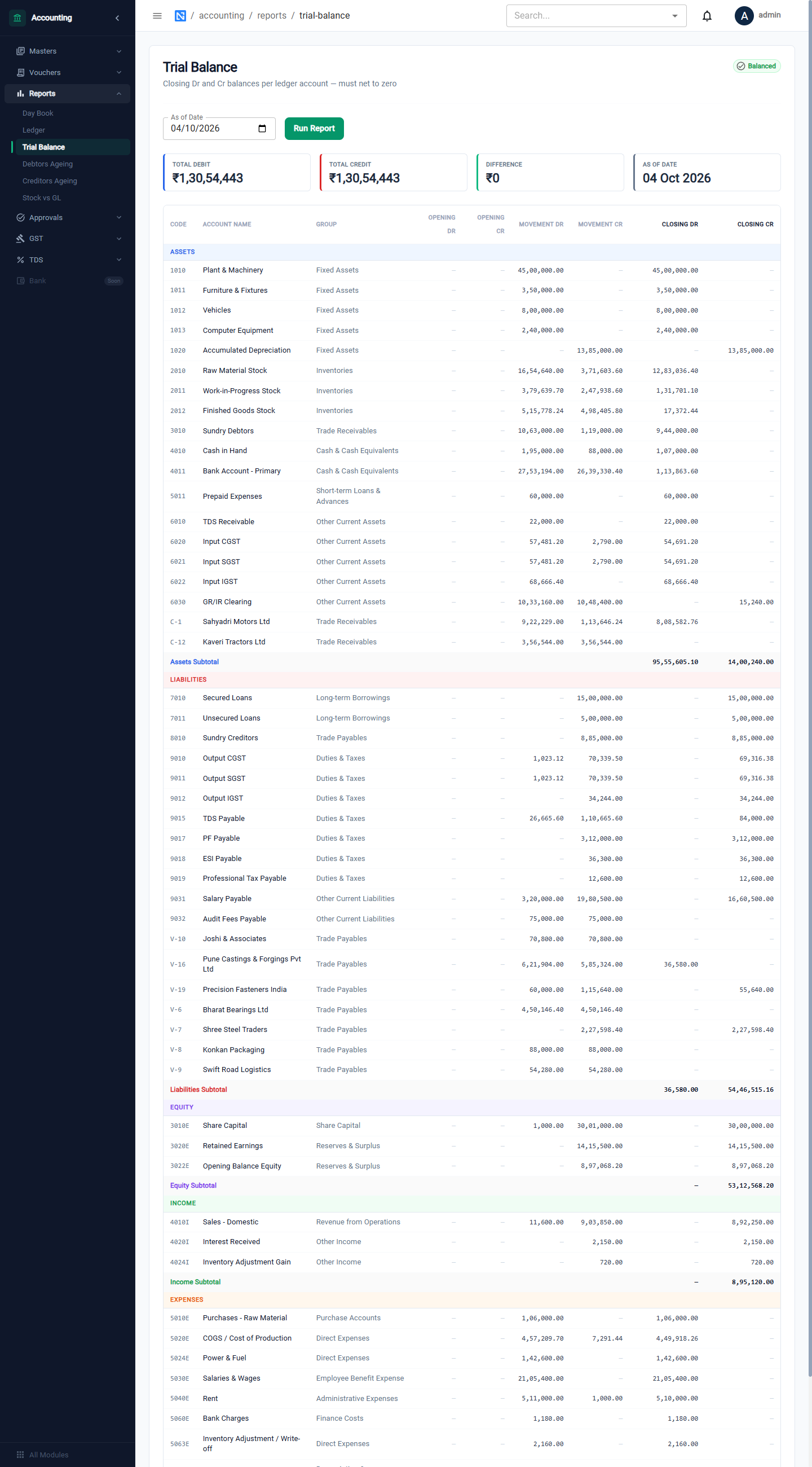
- The tiles show Total Debit, Total Credit and the Difference; a Balanced badge confirms the two sides agree.
- Accounts are grouped under Assets, Liabilities, Equity, Income and Expenses, each with a subtotal.
- For every account you see the Opening, the Movement and the Closing balance, debit and credit.
- Customers and vendors are listed one by one under their control accounts.
Day Book
Every posted voucher in date order. Choose From and To and click Run Report.
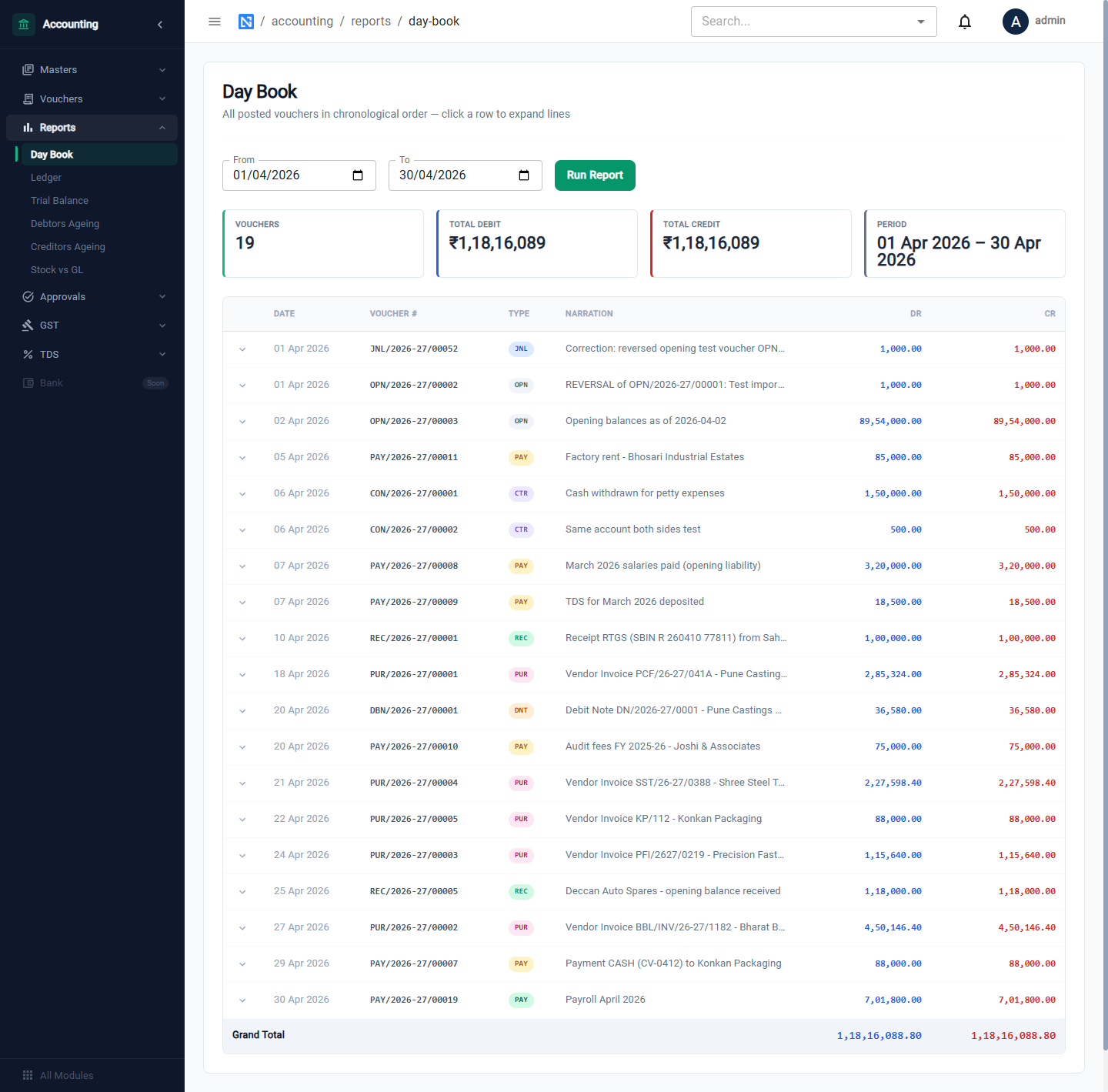
The tiles show the number of vouchers and the total debit and credit for the period. Click a row to expand its lines.
Ledger
The statement of one account. Choose the Ledger Account, From and To, and click Run Report.
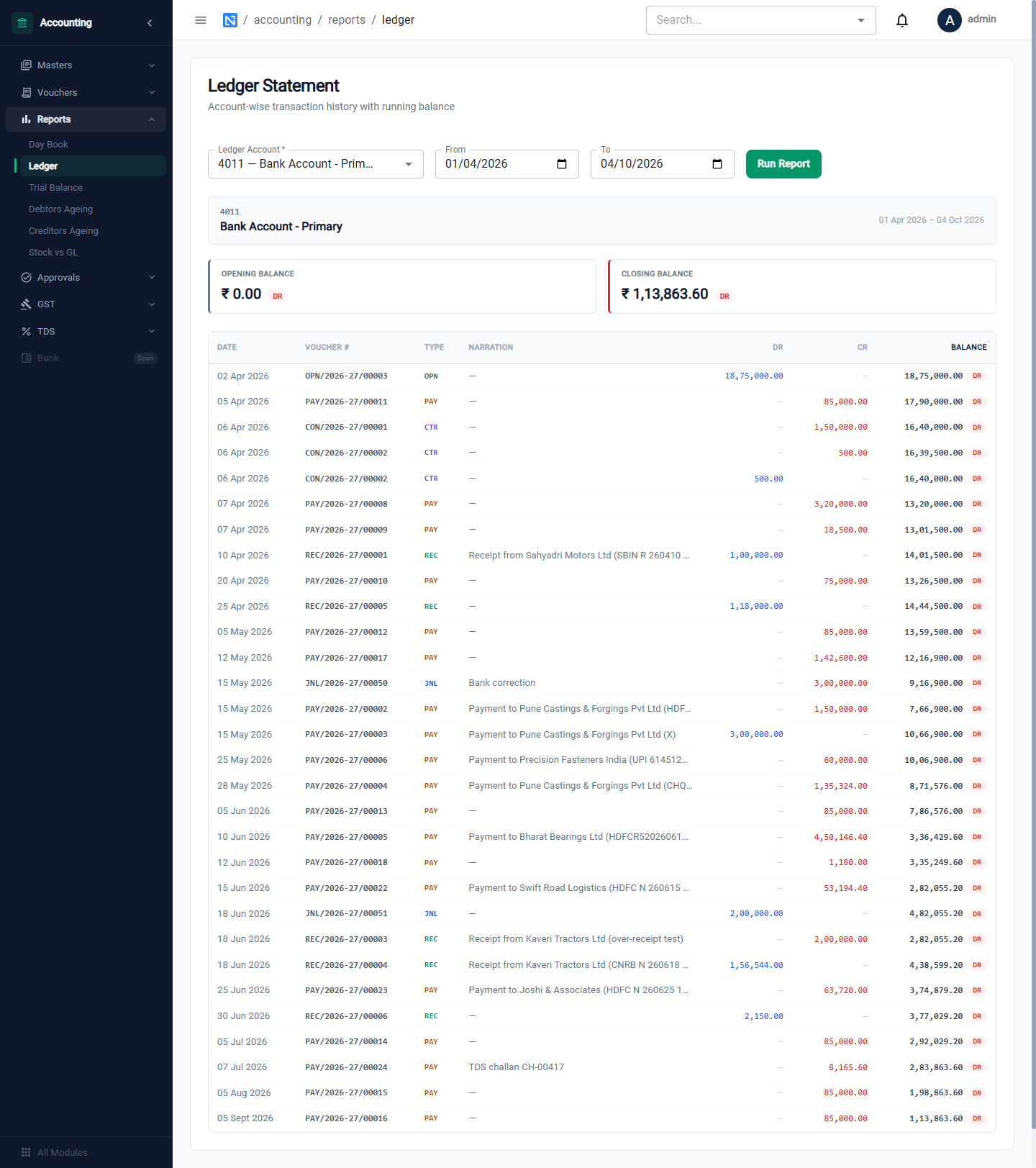
The statement gives the Opening Balance, each voucher with its debit or credit, a running balance and the Closing Balance.
Debtors Ageing and Creditors Ageing
What customers owe you and what you owe vendors, by how old it is. Choose the As of Date and click Run Report.
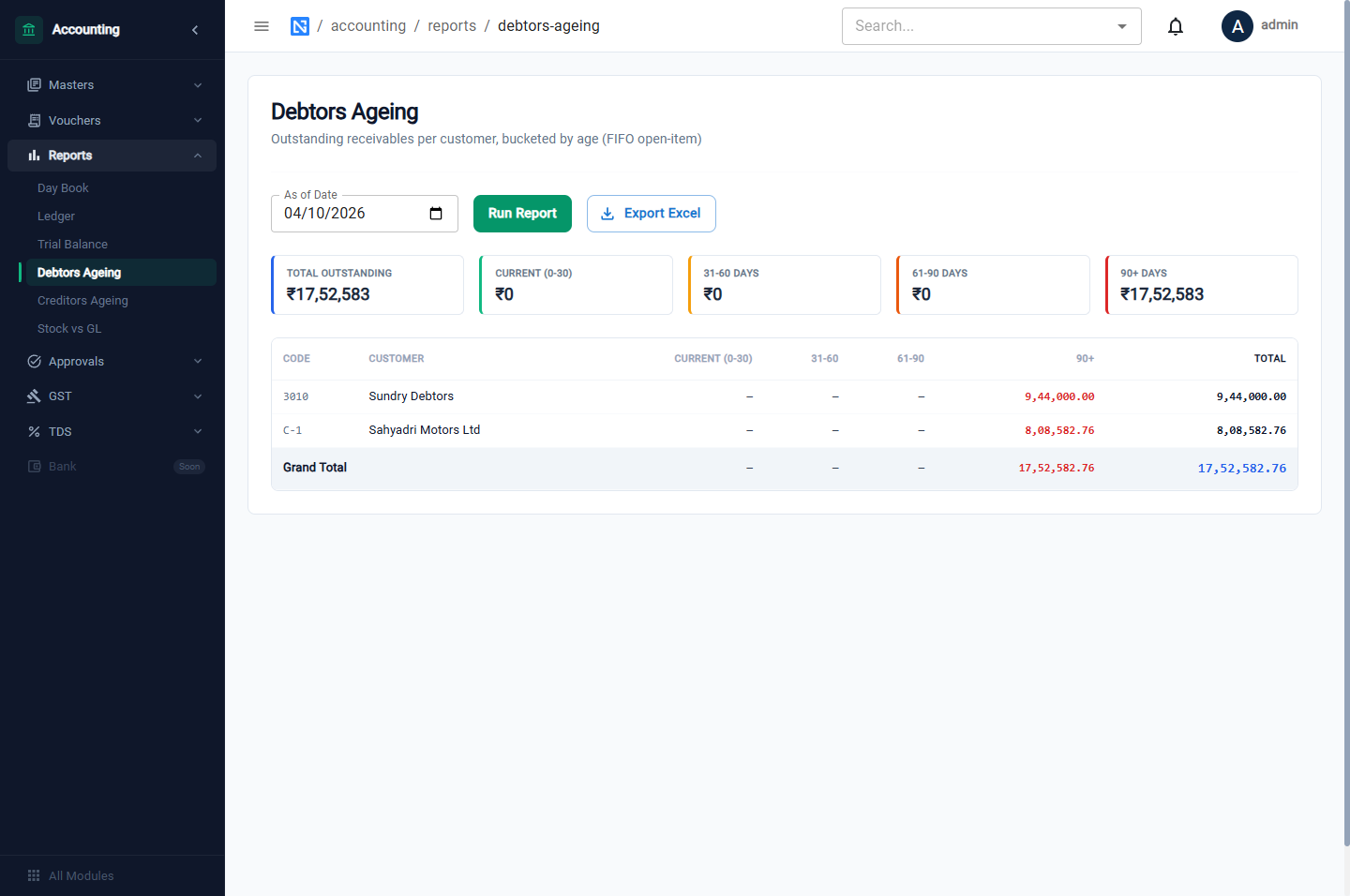
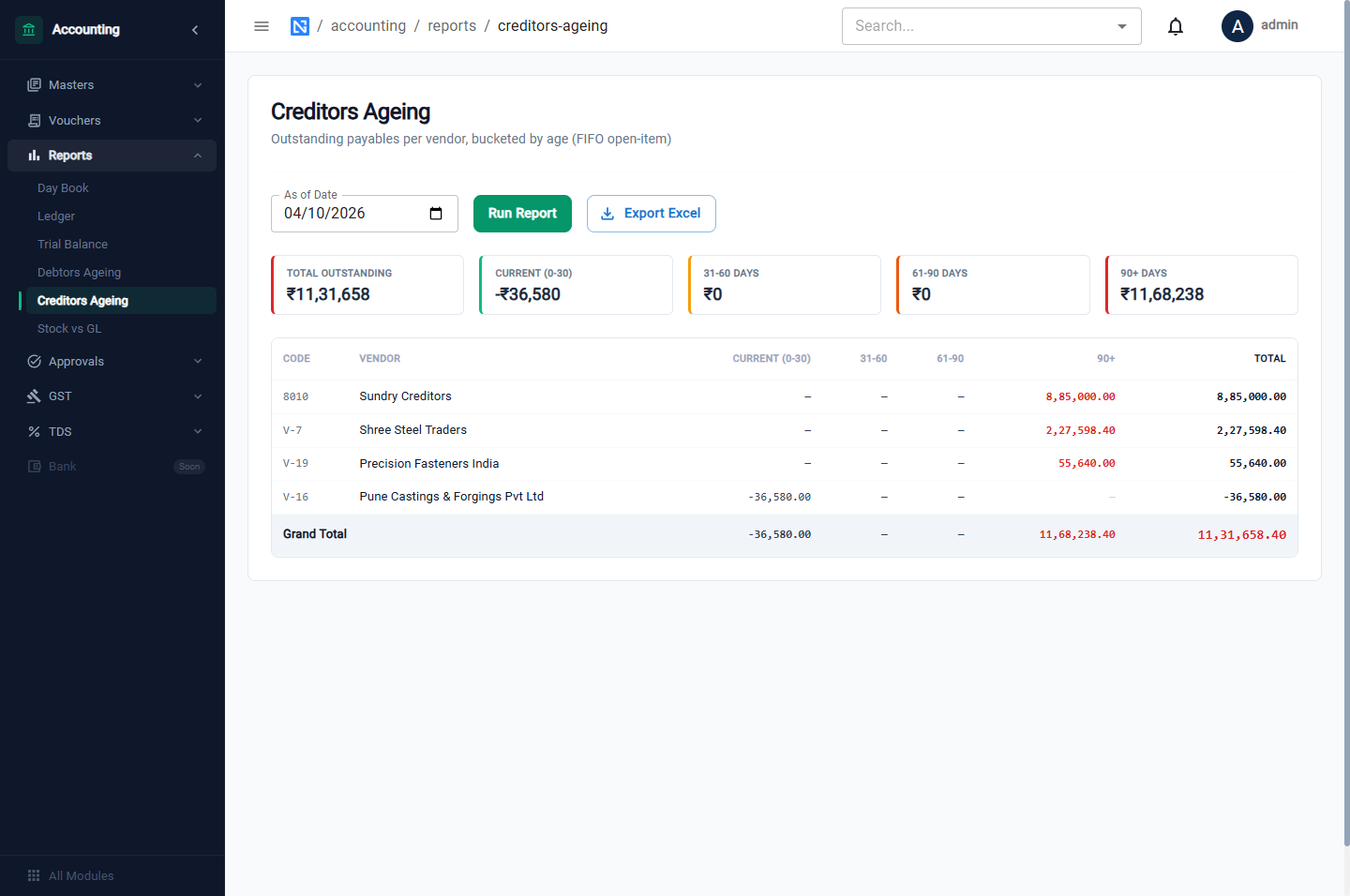
Amounts are placed in buckets — Current (0-30), 31-60, 61-90 and 90+ days — for each party, matching payments against the oldest items first. Export Excel downloads the report.
Stock vs GL
Checks that the value of stock in Inventory agrees with the stock accounts in the ledger. Choose the As of Date (and, optionally, a Cutover date to ignore history before go-live) and click Run Report.
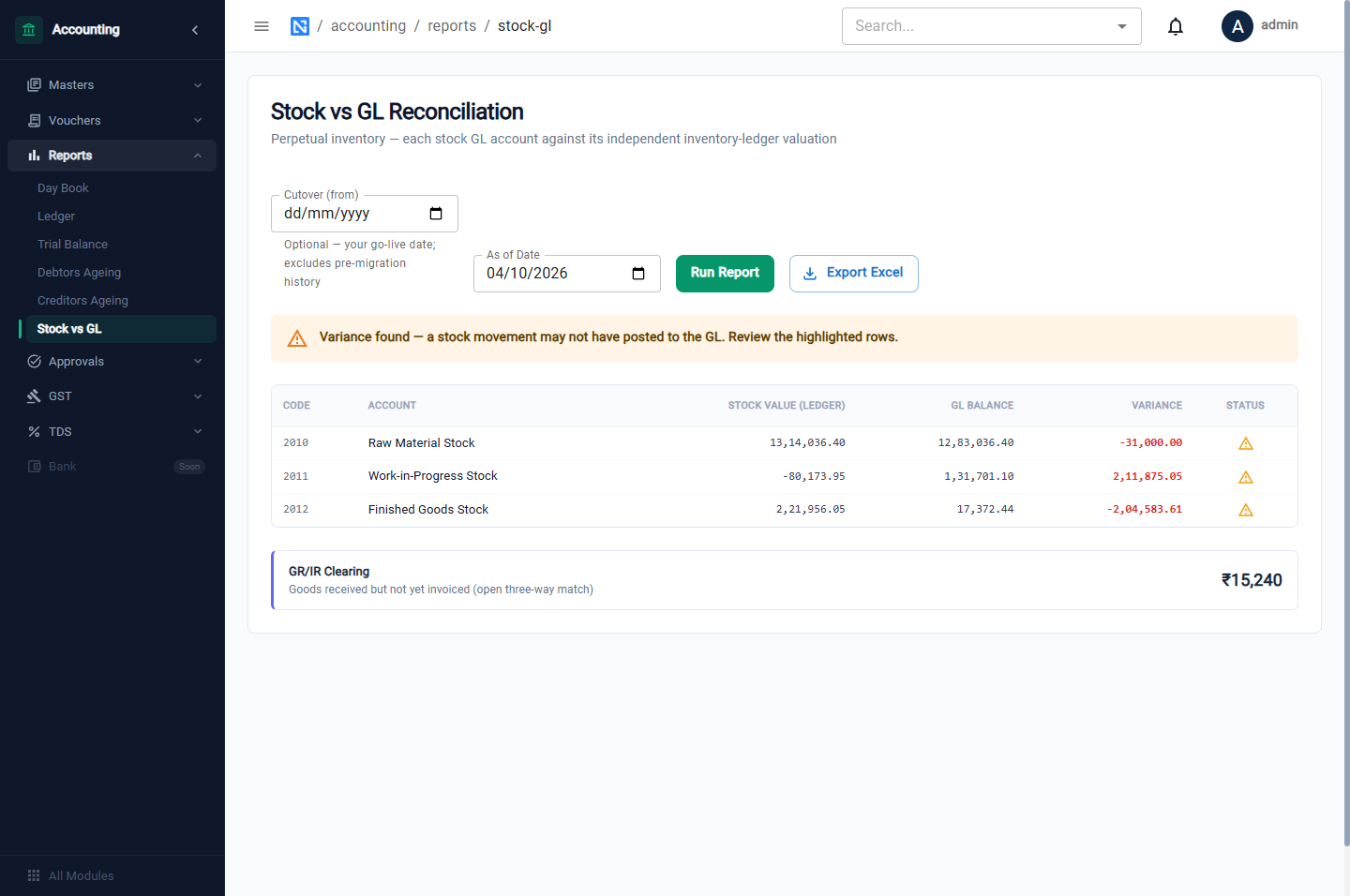
For Raw Material Stock, Work-in-Progress Stock and Finished Goods Stock the report shows the stock value, the GL balance and the variance. A warning sign marks an account where the two differ, which means a stock movement did not reach the ledger, or a ledger entry was made with no stock movement.
Below is GR/IR Clearing: the value of goods received for which the vendor's invoice has not yet been posted.
Run this report at each month-end before locking the period. Work-in-progress will show a balance while work orders are open; investigate any variance on raw material or finished goods.
Reports elsewhere
| Report | Where |
|---|---|
| Stock valuation | Inventory → Dashboard → Valuation |
| Purchase analytics, overdue orders | Purchase → Purchase Orders → Analytics, Overdue |
| Work-order cost | A work order's Cost of Production tab |
| GST registers and returns | GST |
| TDS register | TDS |
| Sales pipeline and revenue | CRM dashboards |