Finding your way around
The module launcher
After you sign in you see the launcher. Each card opens one module.
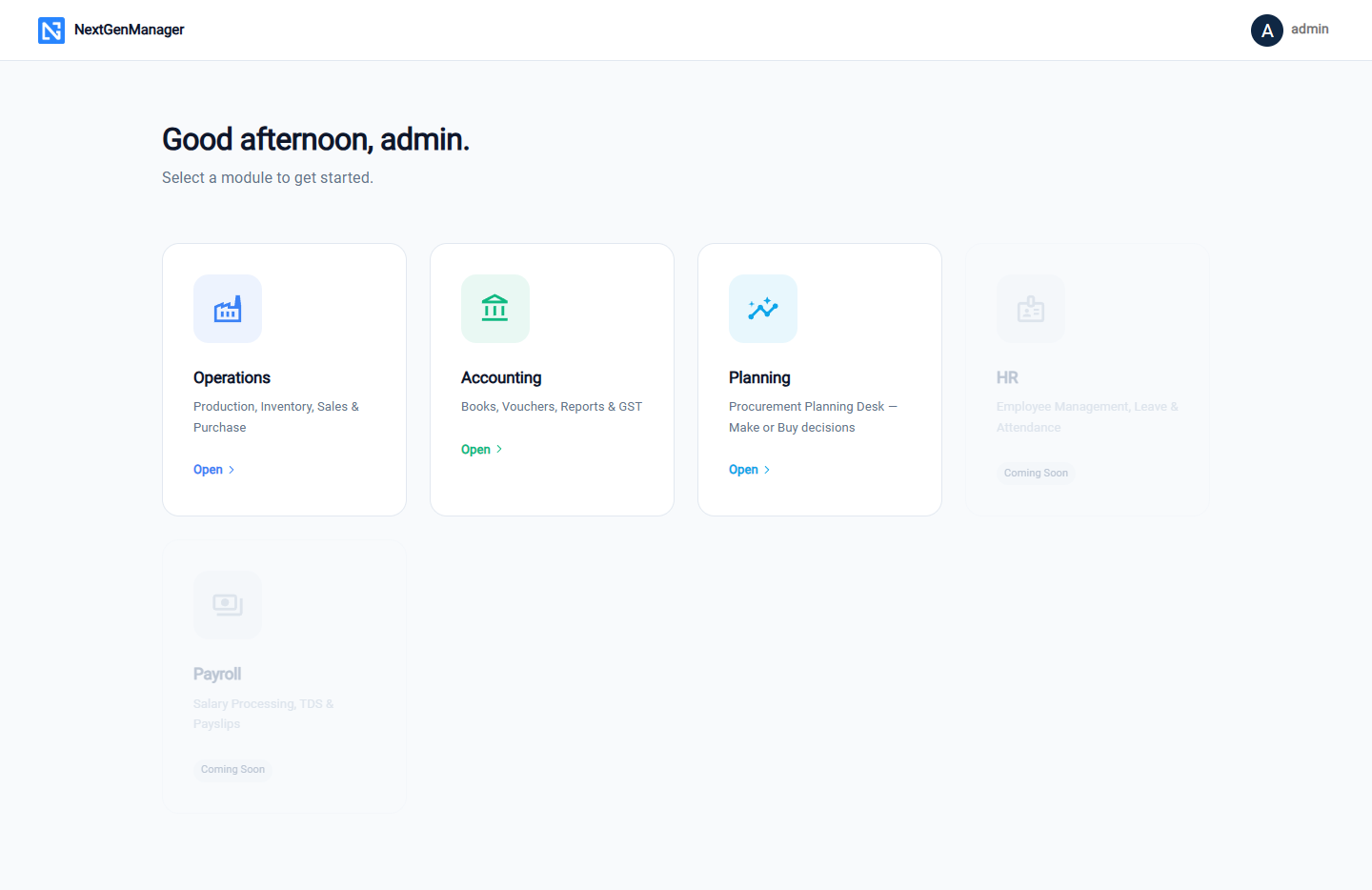
| Module | What is inside |
|---|---|
| Operations | Products, bills of material, production, purchase, inventory, sales, quality, contacts and administration |
| Accounting | Chart of accounts, vouchers, reports, GST and TDS |
| Planning | The Procurement Planning Desk, for make-or-buy decisions |
| HR, Payroll | Shown as Coming Soon |
Which cards you can open depends on your roles. Accounting needs an accounts role and Planning needs the planner role. To return to the launcher at any time, click All Modules at the bottom of the sidebar.
Operations
Operations opens on the dashboard: work orders that are overdue, due soon, in progress or blocked, the most recent work orders and quick links.
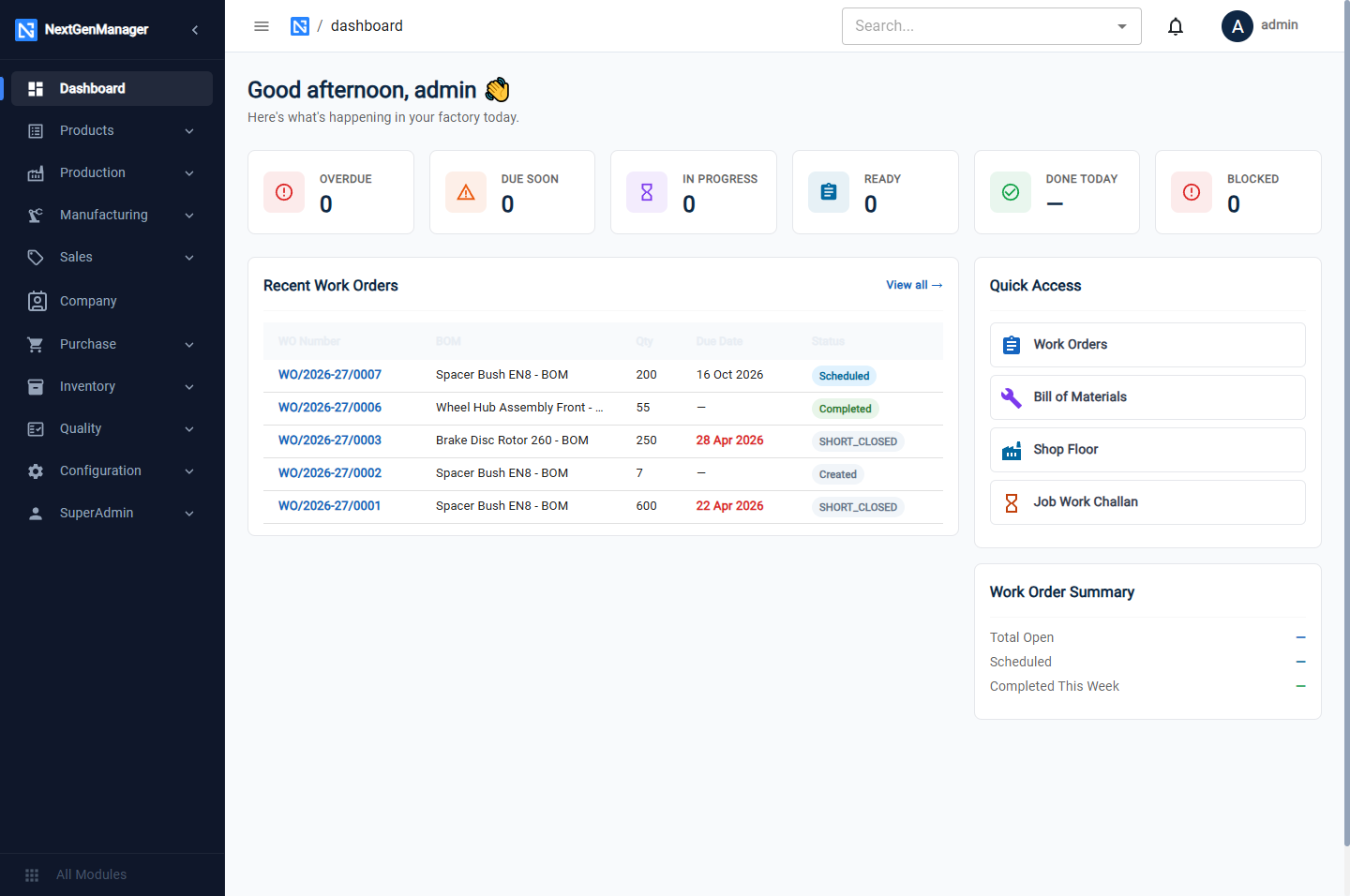
The dark sidebar on the left is the menu.
| Menu | Screens |
|---|---|
| Dashboard | The work-order overview |
| Products | Master (the product list), Bill Of Material |
| Production | Schedule Views, Shop Floor, Work Orders, Job Work Challan, Make or Buy, Planning Desk (planners only), Machine Assets, OEE Dashboard |
| Manufacturing | Work Center, Routing, Downtime Reasons, Production Job, Labor Roles, Holiday Calendar |
| Sales | Pipeline Desk, Revenue Desk, Enquiries, Quotations, Sales Orders, Delivery Challans, Invoices |
| Company | Contacts — customers and vendors |
| Purchase | Purchase Orders, Requisitions (debit notes open from a purchase order) |
| Inventory | Dashboard, Warehouses, Stock Transfers, Pick Lists, Packing Slips, Material Requests |
| Quality | Inspections (the Quality Desk) |
| Configuration | Item Code |
| SuperAdmin | User List, Role Management, Company Details |
Along the top of every page:
- the menu button folds the sidebar away to give the page more room;
- the breadcrumb shows where you are;
- the Search box jumps straight to a screen by name;
- the bell shows notifications;
- your name opens Account Settings and Logout.
Accounting and Planning
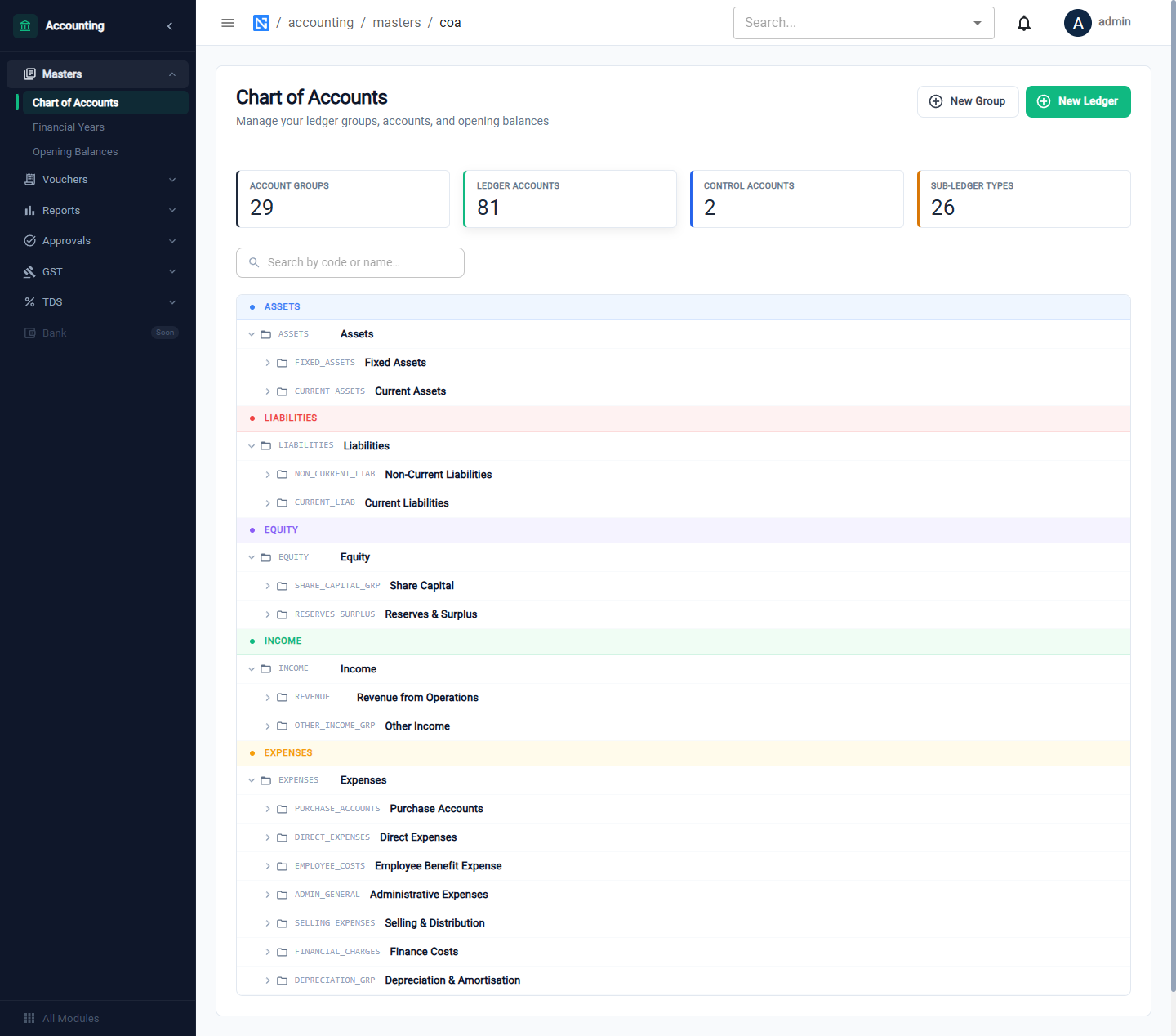
Accounting and Planning each have their own sidebar, with the module name at the top.
Things that work the same everywhere
Lists. Most lists open with a row of tiles that count what matters (for example Awaiting Approval), then a table. Click a document number to open it.
Filter builder. Many lists have a filter row: choose a Field, an Operator and a Value, then click Add. Each filter appears as a chip that you can remove. Some lists start with filters already applied. The work-order list, for example, hides closed and cancelled orders until you remove those chips.
Required fields are marked with a star (*). A form will not save until they are filled, and
the field with the problem is outlined in red with a message below it.
Confirmations. Actions that cannot be undone, such as approving, posting, dispatching or cancelling, ask you to confirm first, and some ask for a reason.
Statuses are shown as coloured chips next to the document number. The buttons on a document change with its status, so you only ever see the actions that are possible now.
Document numbers are assigned automatically and include the financial year, for example
PO/2026-27/0001. See Document numbers.