Signing in
Sign in
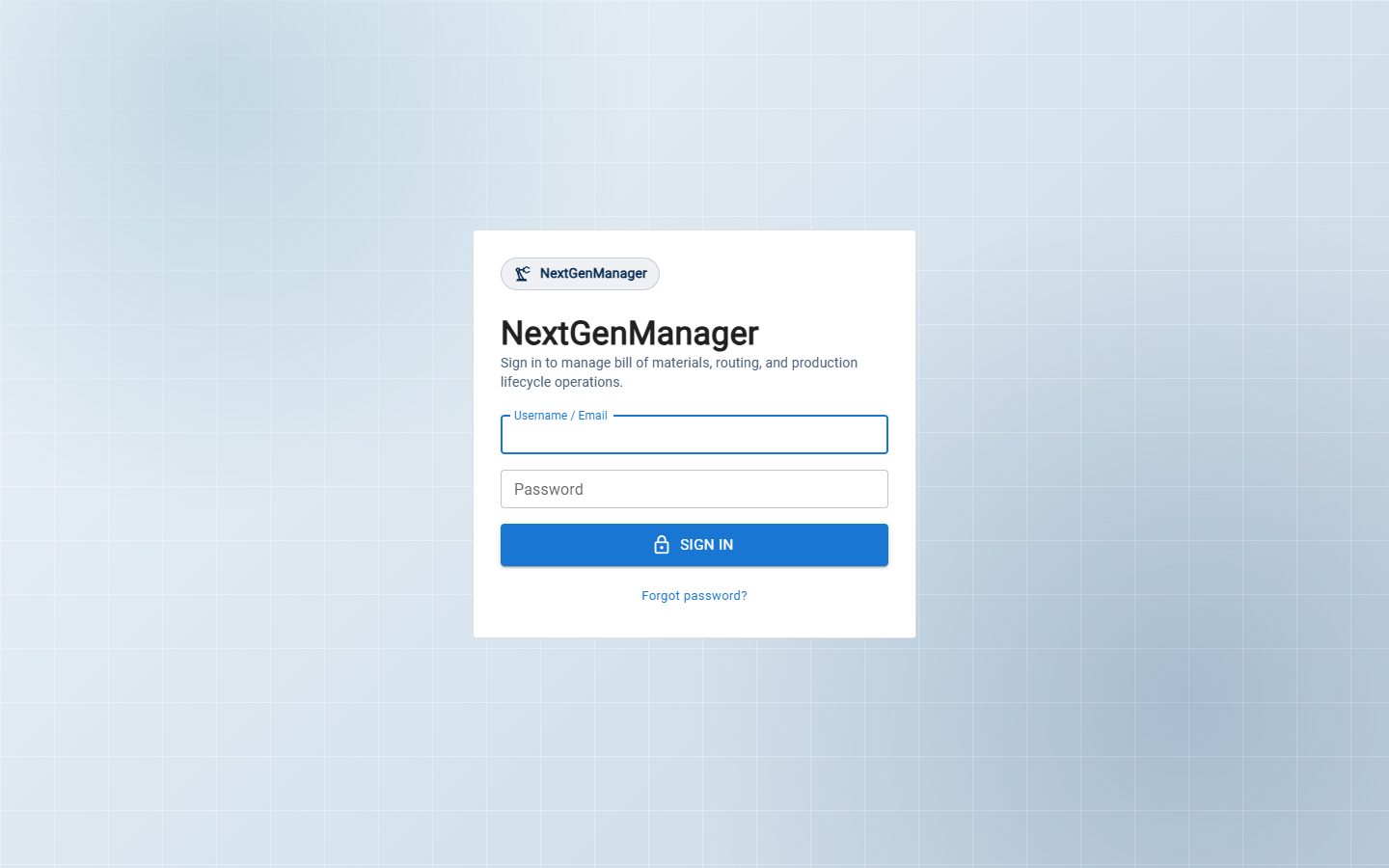
- Open your company's NextGenManager address in the browser. The login page appears.
- Type your Username / Email and Password.
- Click SIGN IN.
You land on the module launcher, where you choose the part of the system you want to work in. See Finding your way around.
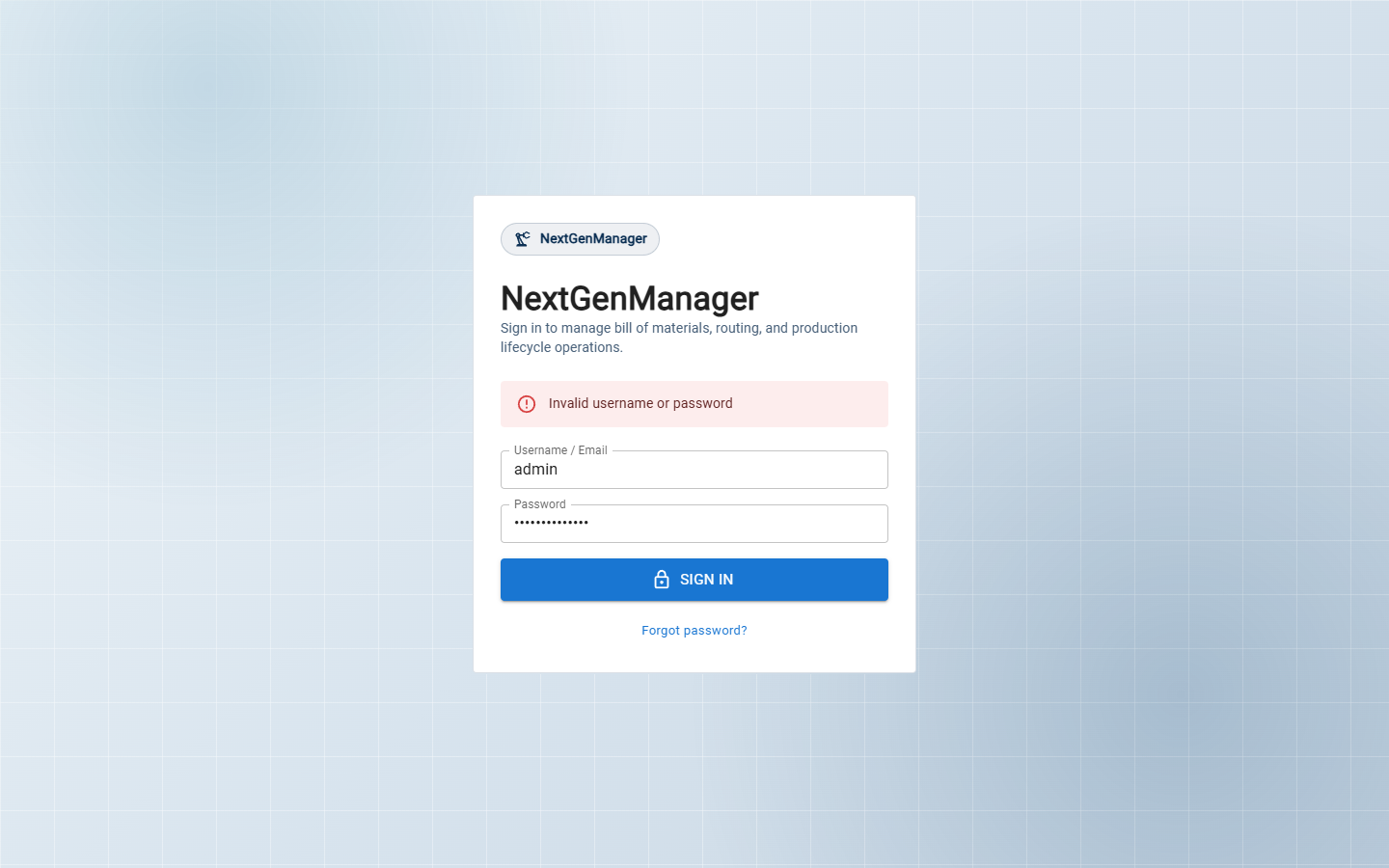
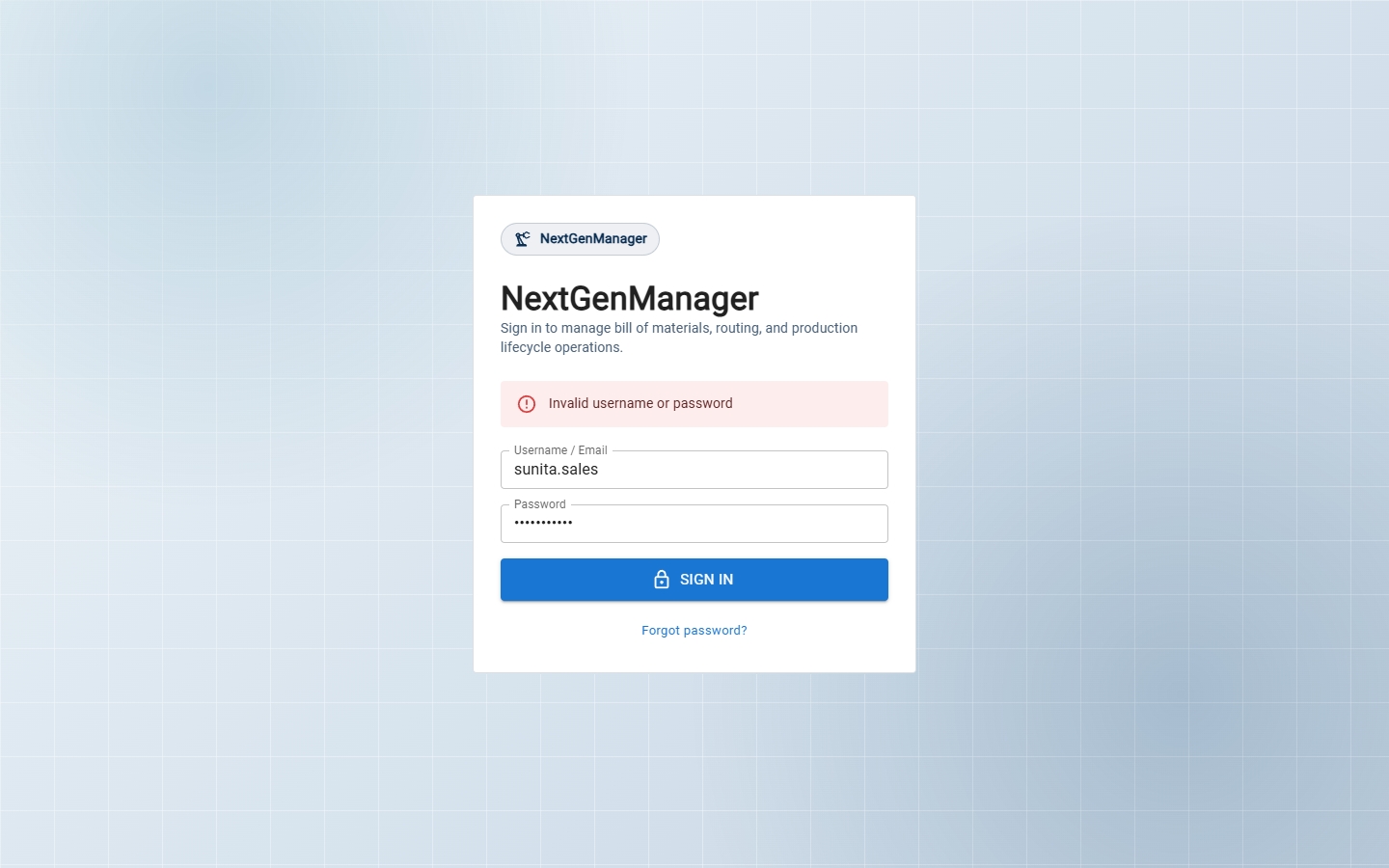
If the username or password is wrong, the page says Invalid username or password and you can try again.
:::note One session per user A username can be signed in at one place at a time. If you sign in on a second computer or browser, the first one is signed out the next time it does anything. :::
Change your password
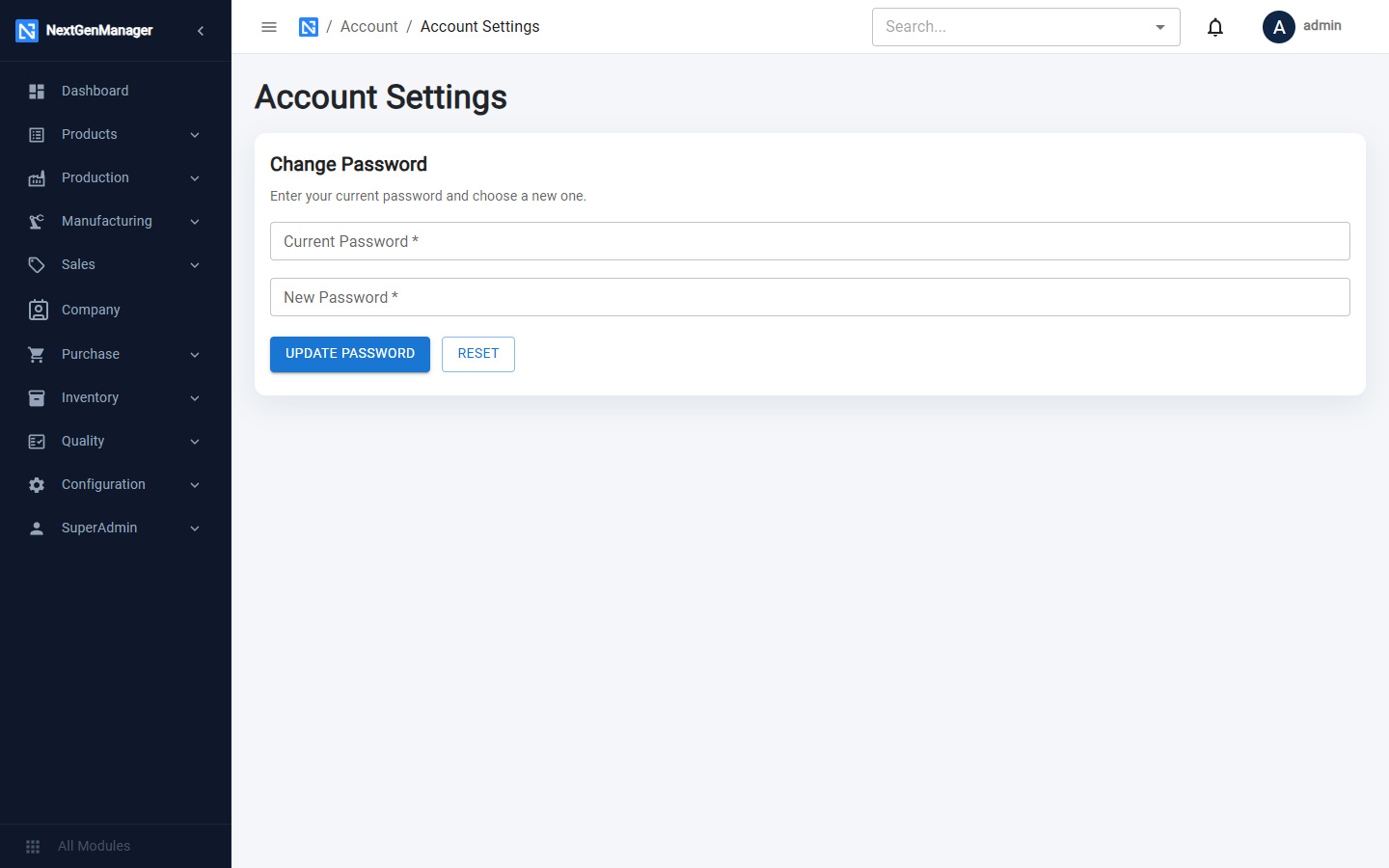
- Click your name at the top right and choose Account Settings.
- Type your Current Password, then the New Password twice.
- Click UPDATE PASSWORD.
A password must be at least 8 characters and contain a letter and a digit. The same rule applies when an administrator creates a user or resets a password.
If you forget your password
Click Forgot password? on the login page. The reset form asks for:
| Field | What to enter |
|---|---|
| Username | Your username |
| Passcode | The recovery passcode. It is set by whoever installed NextGenManager for your company, in the server configuration |
| New Password / Confirm New Password | The password you want |
Click RESET PASSWORD.
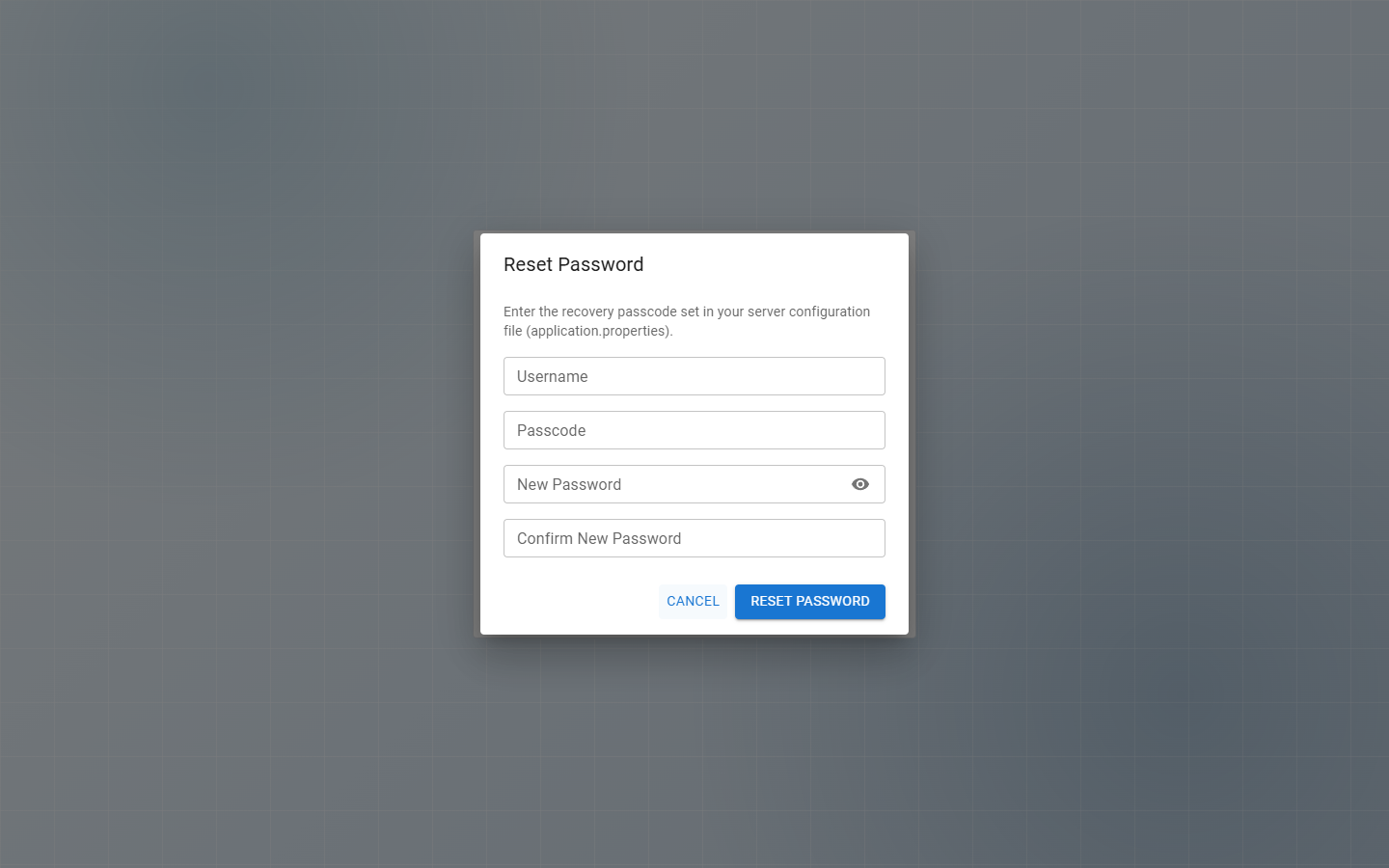
If you do not know the passcode, ask an administrator to reset your password for you from SuperAdmin → User List (see Users and roles). On hosted, multi-company installations a one-time code sent by e-mail may be used in place of the passcode.
Sign out
Click your name at the top right and choose Logout.