Physical stock count
Where: Operations → Inventory → Dashboard → Stock Control → Physical Stock Count.
Use a stock count to bring the system's figures into line with what is really on the shelves.
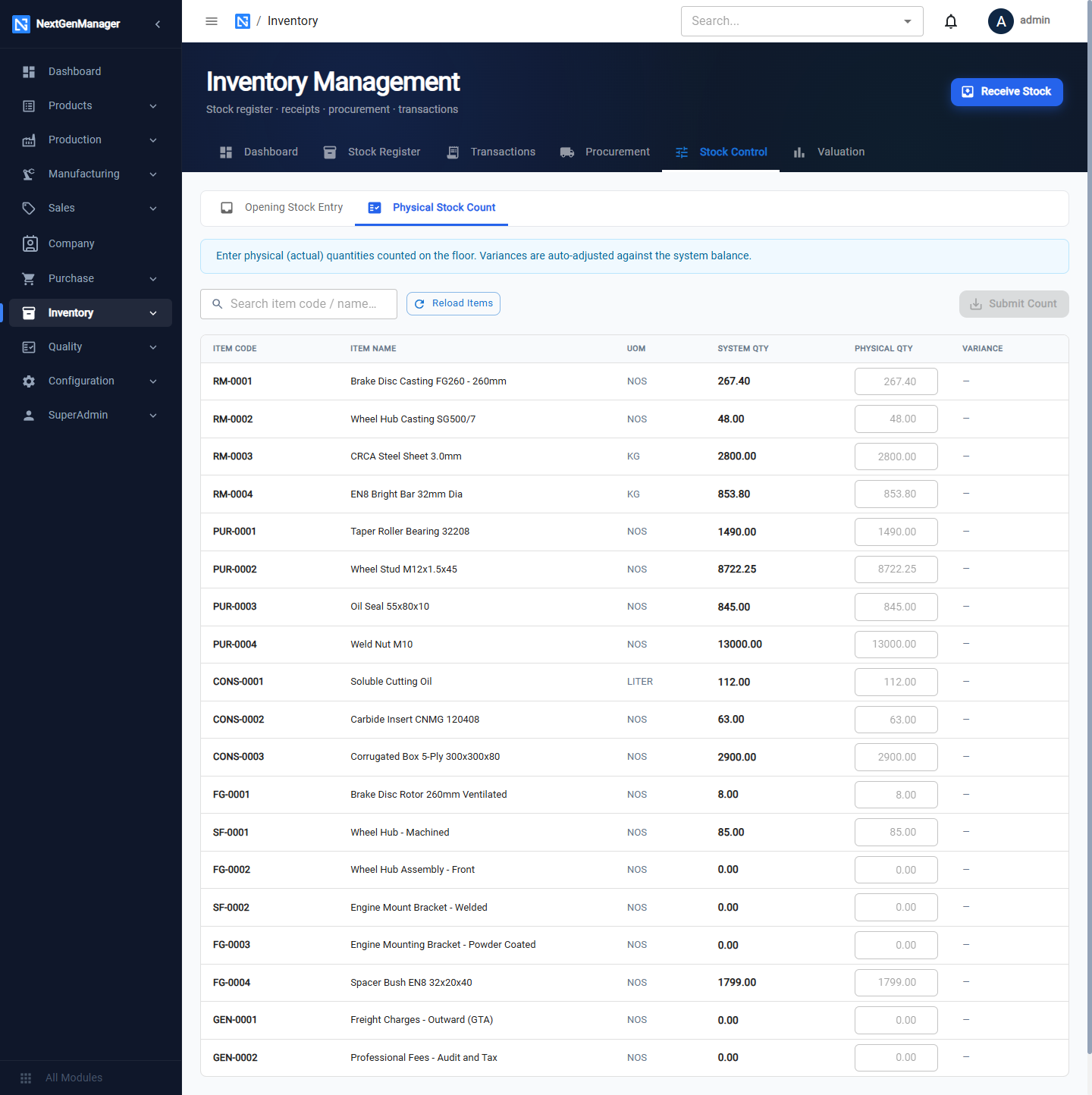
Enter a count
- Open the Physical Stock Count sub-tab. Every product is listed with its System Qty.
- For each product you counted, type the Physical Qty. The Variance appears beside it. Leave products you did not count untouched.
- Click Submit Count (n). The number in brackets is how many products you changed.
The page confirms with a count number, for example Count SC-20261004-2980 saved — 3 item(s) adjusted.
What a count does
For each product whose physical quantity differs from the system quantity, the stock is adjusted and the books are corrected:
| Result | Stock | In the books |
|---|---|---|
| Shortage (fewer than the system says) | Reduced | The loss goes to Inventory Adjustment (an expense) |
| Excess (more than the system says) | Increased | The gain goes to Inventory Adjustment Gain (income) |
See What posts where.
tip
Count when the stores are quiet, with all receipts and issues for the day already entered. A count taken while documents are still waiting to be posted will adjust for differences that are not real.