Planning: shortfalls, the Planning Desk and Make or Buy
What happens when a sales order is approved
For each line, the system compares the quantity ordered with the free stock. If there is enough, it asks stores to allocate it. If there is a shortfall, what happens next depends on two settings on the product's Inventory Settings tab: the Replenishment Strategy and the Purchased / Manufactured In-House boxes.
| The product is… | What the system does with a shortfall |
|---|---|
| Make to Stock | Nothing is raised. The order waits for stock, which you replenish by your reorder rules |
| Make to Order, manufactured in-house only | A work order for the shortfall is created automatically, with the sales order as its source. When it is completed, its output is reserved for that sales order |
| Make to Order, purchased only | A purchase requisition is raised |
| Make to Order, both manufactured and purchased | The need goes to the Planning Desk for a decision |
So for most products nobody has to do anything: the right document appears by itself. Only the ambiguous cases reach a planner.
Every replenishment the system raises is listed under Inventory → Dashboard → Procurement → Procurement Orders.
The Planning Desk
Where: the Planning module, or Operations → Production → Planning Desk. You need the planner role.
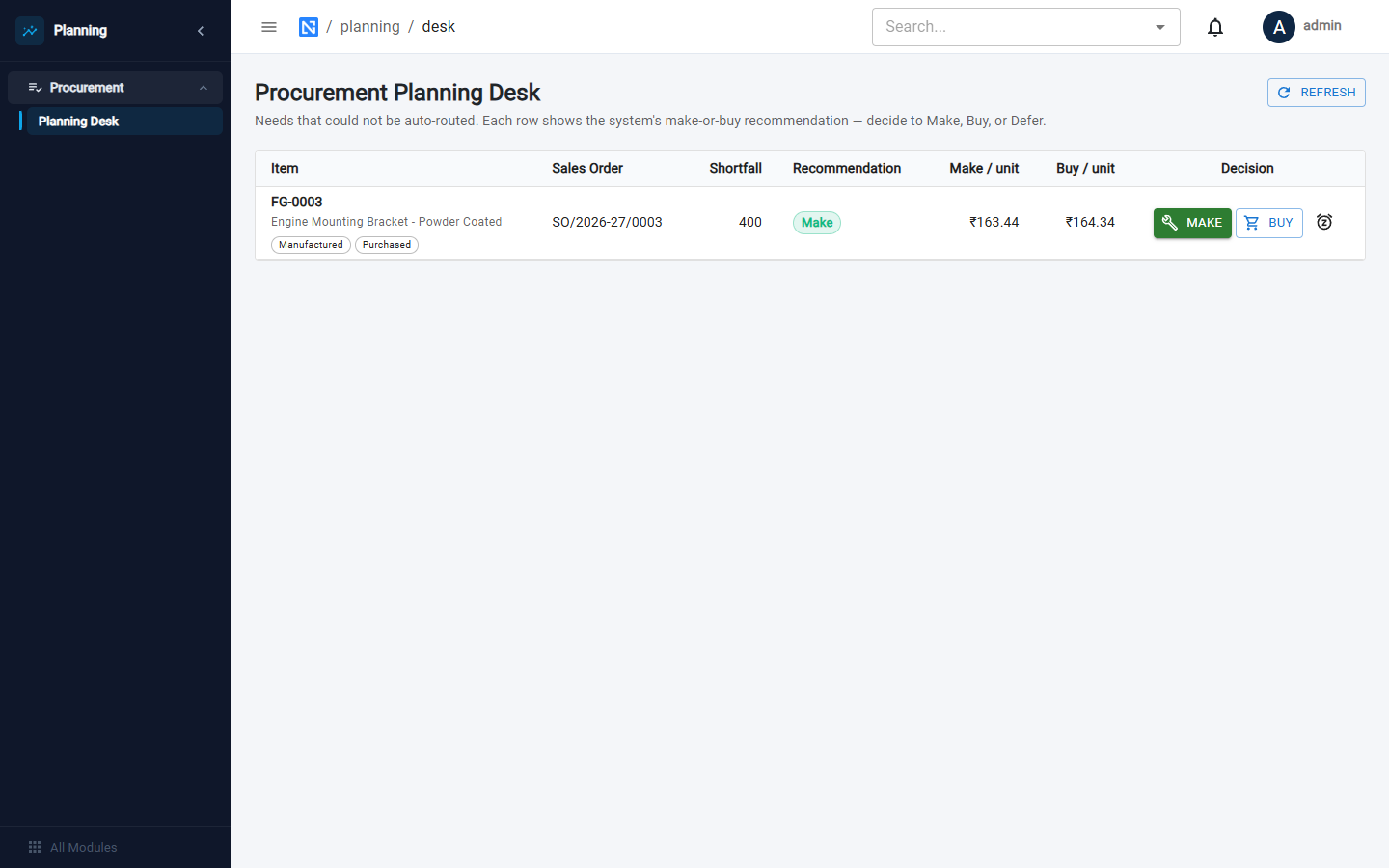
There is one row for each need that could not be routed automatically.
| Column | Meaning |
|---|---|
| Item | The product, tagged Manufactured and Purchased |
| Sales Order | The order that needs it |
| Shortfall | The quantity missing |
| Recommendation | The system's suggestion: Make or Buy |
| Make / unit, Buy / unit | The cost each way |
Decide each row:
- MAKE — raises a work order for the shortfall;
- BUY — raises a purchase requisition;
- the snooze button — defers the decision. It asks you to confirm first, because a deferred need leaves the desk with no work order or requisition raised for it.
When nothing is waiting, the desk reads Nothing awaiting a decision.
Make or Buy analysis
Where: Operations → Production → Make or Buy, or the Make/Buy button on a row of the product list.
Use it at any time to compare the three ways of getting a product.
- Choose the product in Select Product and enter the Quantity.
- Optionally open Overrides to try a different Buy Price or Job Work Rate.
- Click Analyze.
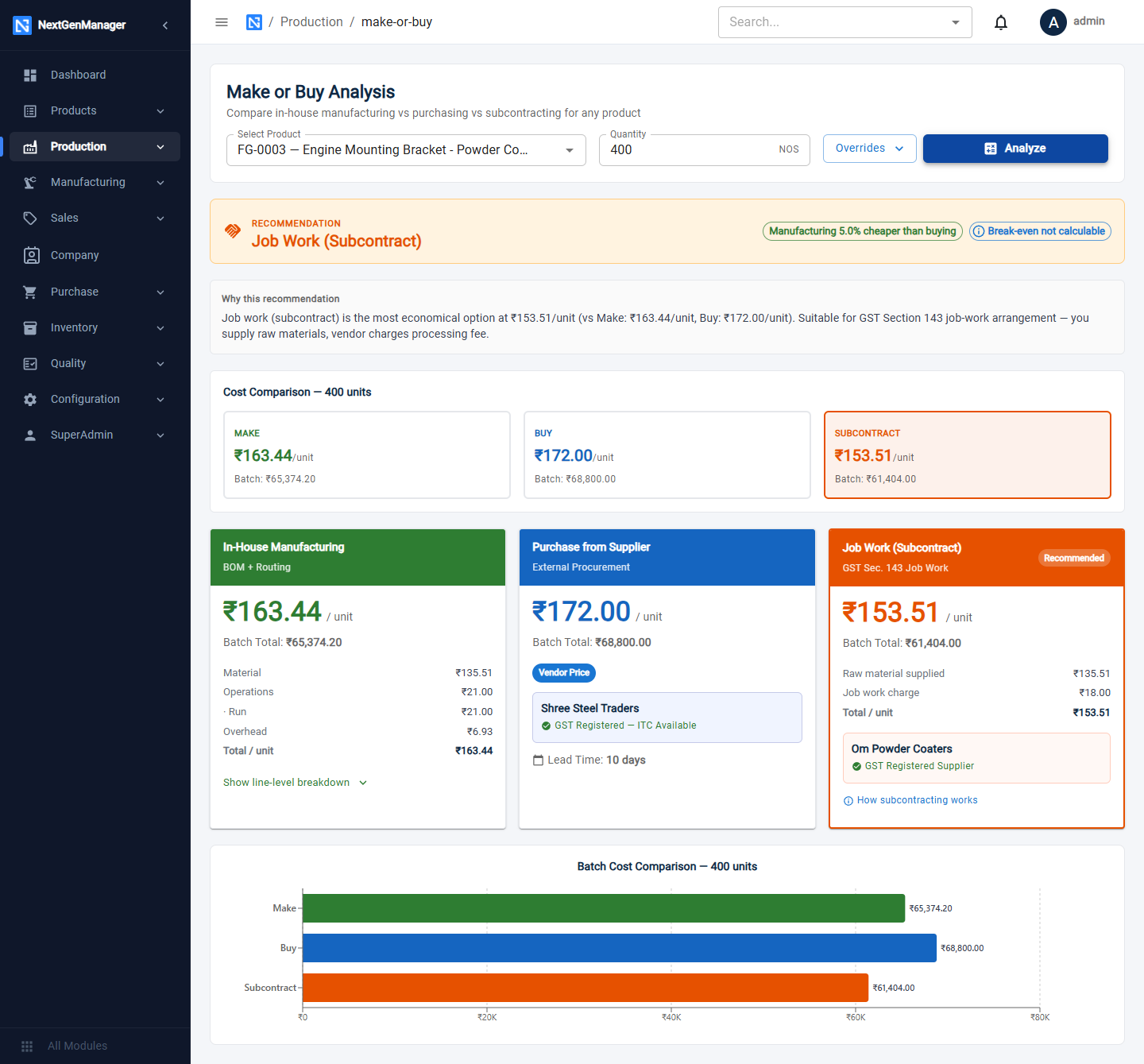
The result gives a recommendation with its reasons, the cost per unit and per batch of each route, and a chart.
| Card | Where the cost comes from |
|---|---|
| In-House Manufacturing | The active BOM: material + operations + overhead |
| Purchase from Supplier | The preferred vendor price, with the vendor's lead time |
| Job Work (Subcontract) | The material you supply + the job-work charge |
Show line-level breakdown opens the detail behind the manufacturing cost.
:::info Vendor prices make the comparison real The Buy and Subcontract cards use the product's vendor prices. If none is recorded, the analysis falls back on the last purchase or the standard cost and says Estimated Pricing Used. If the product has no active BOM, the Make card cannot be costed. :::