Vendor invoices and payments
Where: open a purchase order → Related Documents → Vendor Invoices.
Recording the vendor's bill and posting it creates the amount you owe in the books. Payments are then recorded against the invoice.
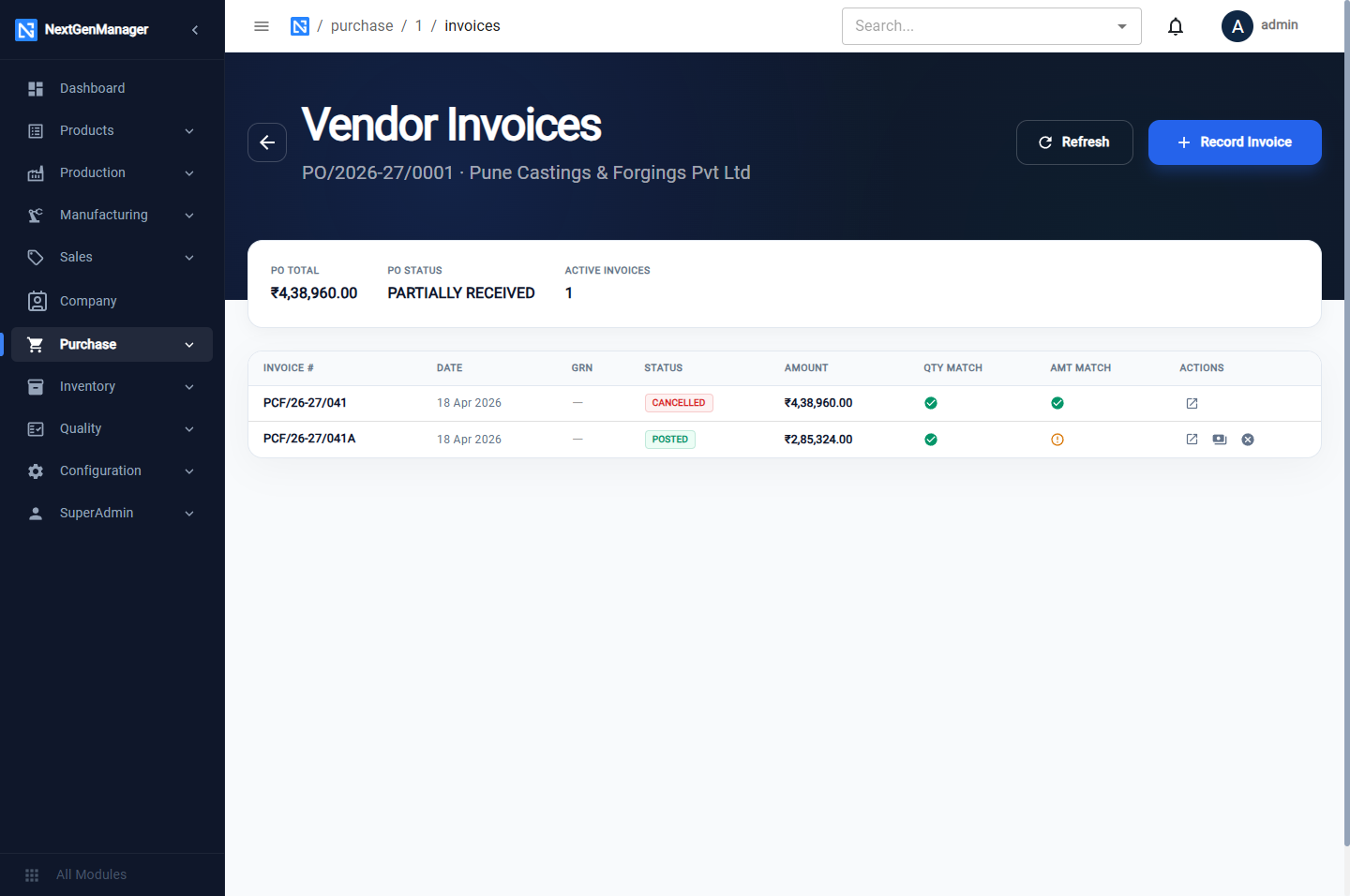
The list shows each invoice with its status and two checks: Qty Match and Amt Match, which compare the invoice with the purchase order.
Record an invoice
Click Record Invoice.
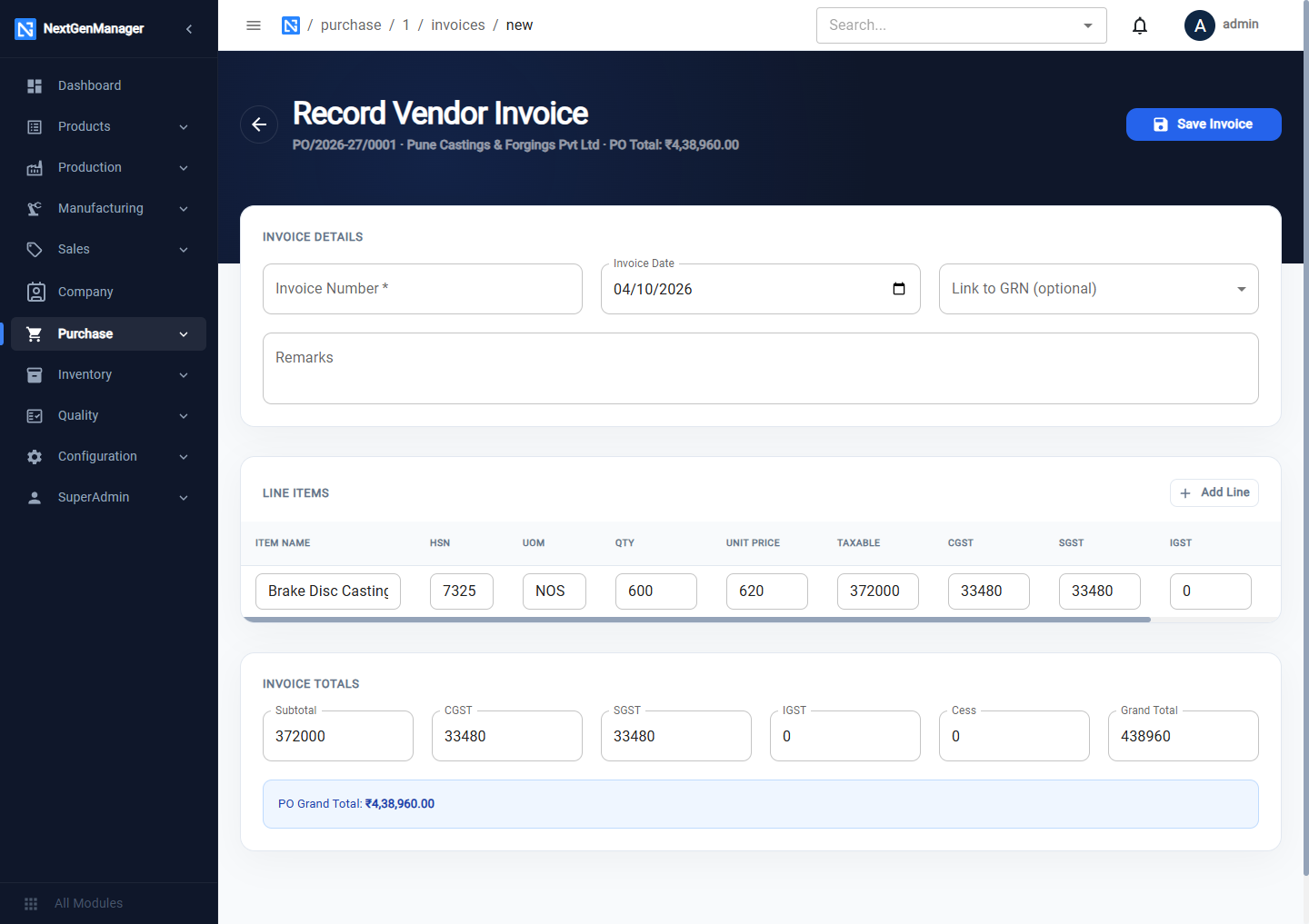
| Field | Notes |
|---|---|
| Invoice Number | The number printed on the vendor's bill. It must be unique |
| Invoice Date | The date on the bill |
| Link to GRN | Choose the goods receipt this bill is for |
| Remarks | Optional |
The lines are filled in from the purchase order: Item, HSN, UOM, Qty, Unit Price, Taxable, CGST, SGST, IGST and Line Total. Below them are the Invoice Totals: Subtotal, CGST, SGST, IGST, Cess and Grand Total. Add Line adds a line.
:::tip Part deliveries The lines start with the full ordered quantity. Choose the goods receipt in Link to GRN and the quantities change to what was accepted; or type a different Qty or Unit Price yourself. Either way the taxable value, the tax and the line total are worked out again, and the Invoice Totals follow. The tax columns stay editable, so you can type over them to match a vendor's rounding. The PO Grand Total under the totals is there for comparison. :::
Click Save Invoice. The invoice is saved as DRAFT.
Post the invoice
Open the invoice and click Post Invoice. The confirmation says This records an AP voucher in accounting.
Posting creates a purchase voucher (PUR/2026-27/00001) dated the invoice date. It clears GR/IR
Clearing for the goods received, books the input GST and credits the vendor. See
What posts where.
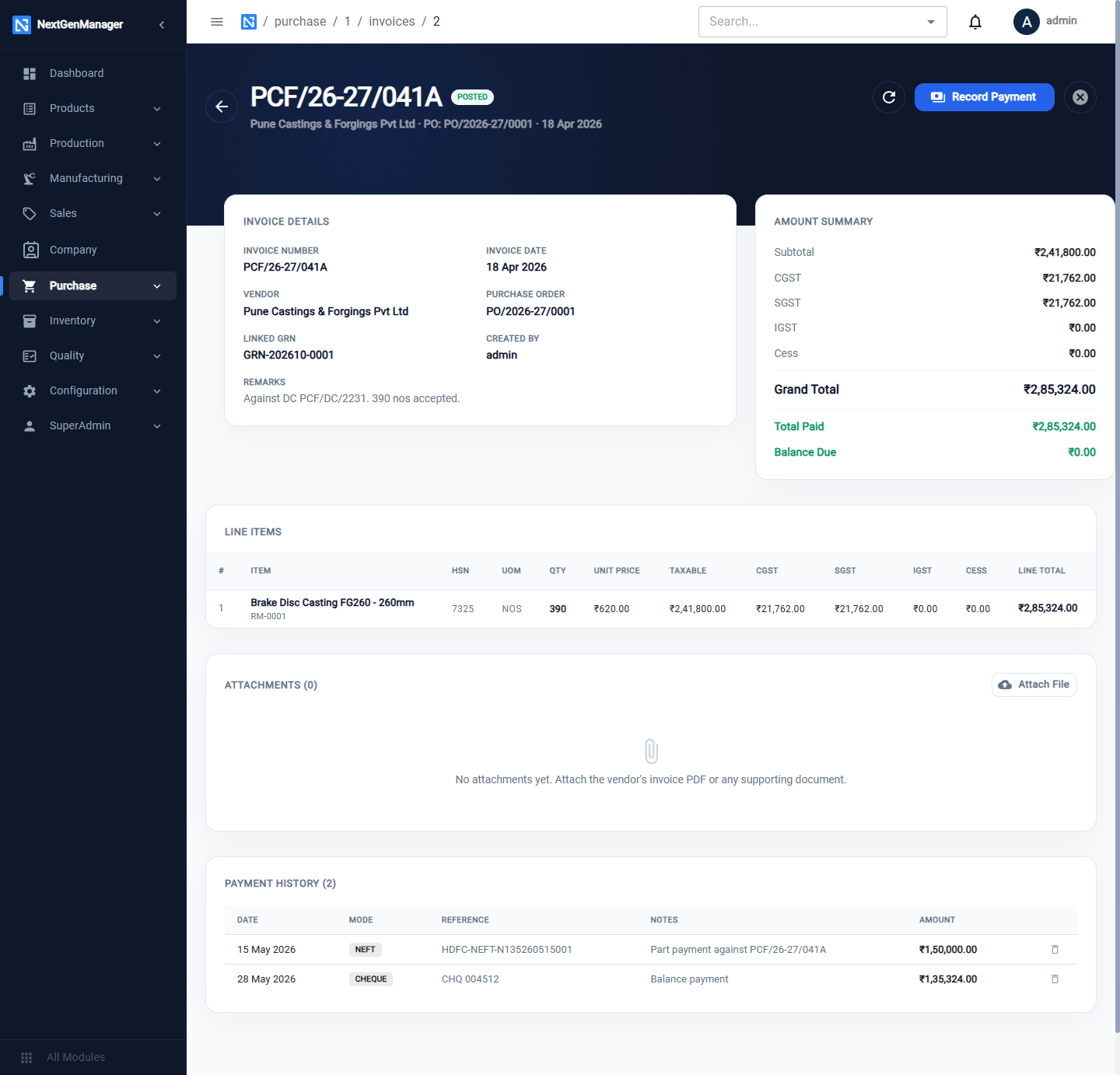
Other buttons on an invoice:
- Cancel Invoice — cancels it. The invoice number stays in use, so a corrected invoice needs a
slightly different number (for example with an
Aat the end). - Attach File — attach the vendor's PDF.
Record a payment
On a posted invoice click Record Payment. The box shows the Invoice Total, Total Paid and Balance Due.
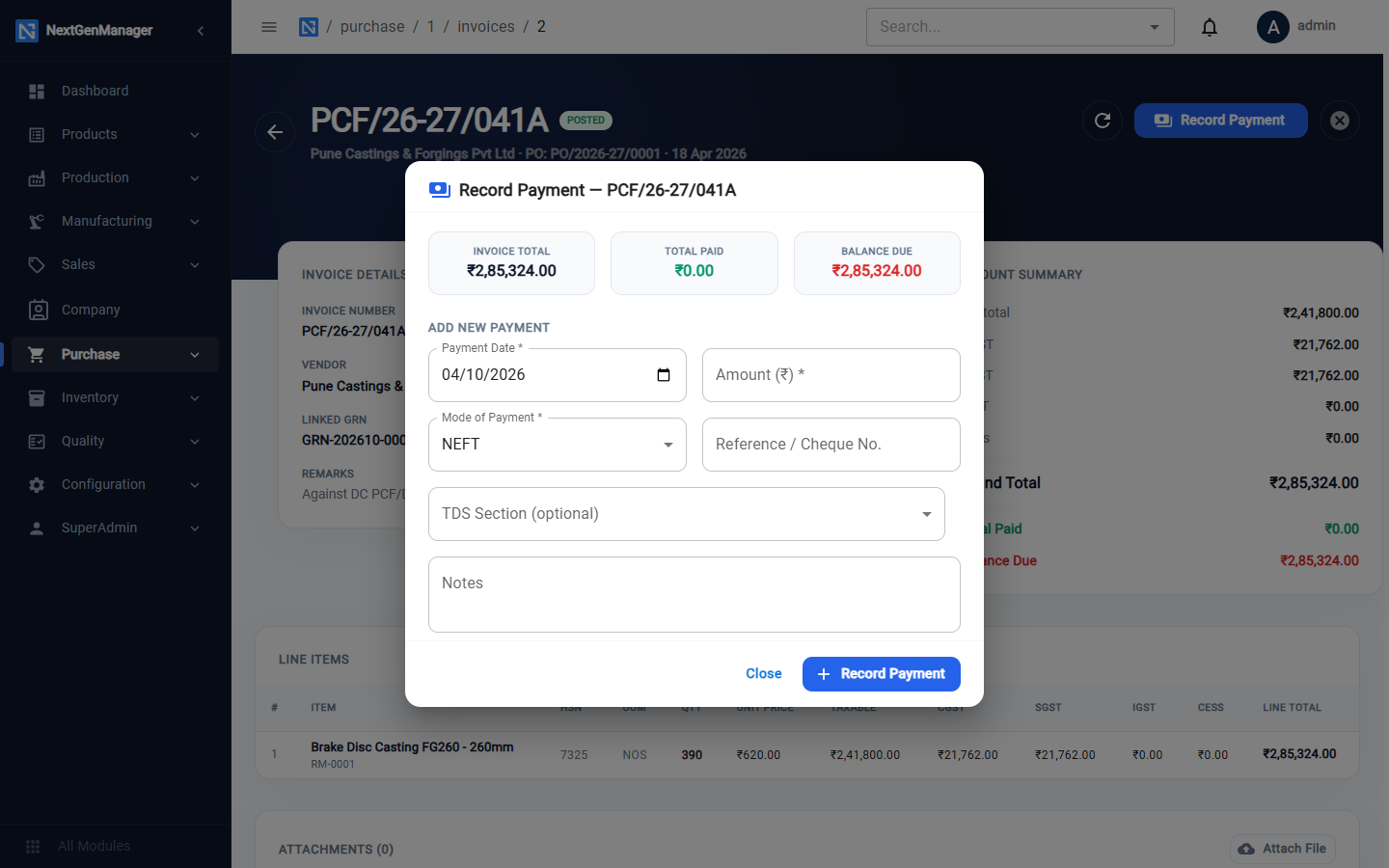
| Field | Notes |
|---|---|
| Payment Date | The date the money left the bank |
| Amount | The amount paid now. Part payments are allowed |
| Mode of Payment | Cash, Cheque, NEFT, RTGS, UPI or Other |
| Reference / Cheque No. | The bank reference |
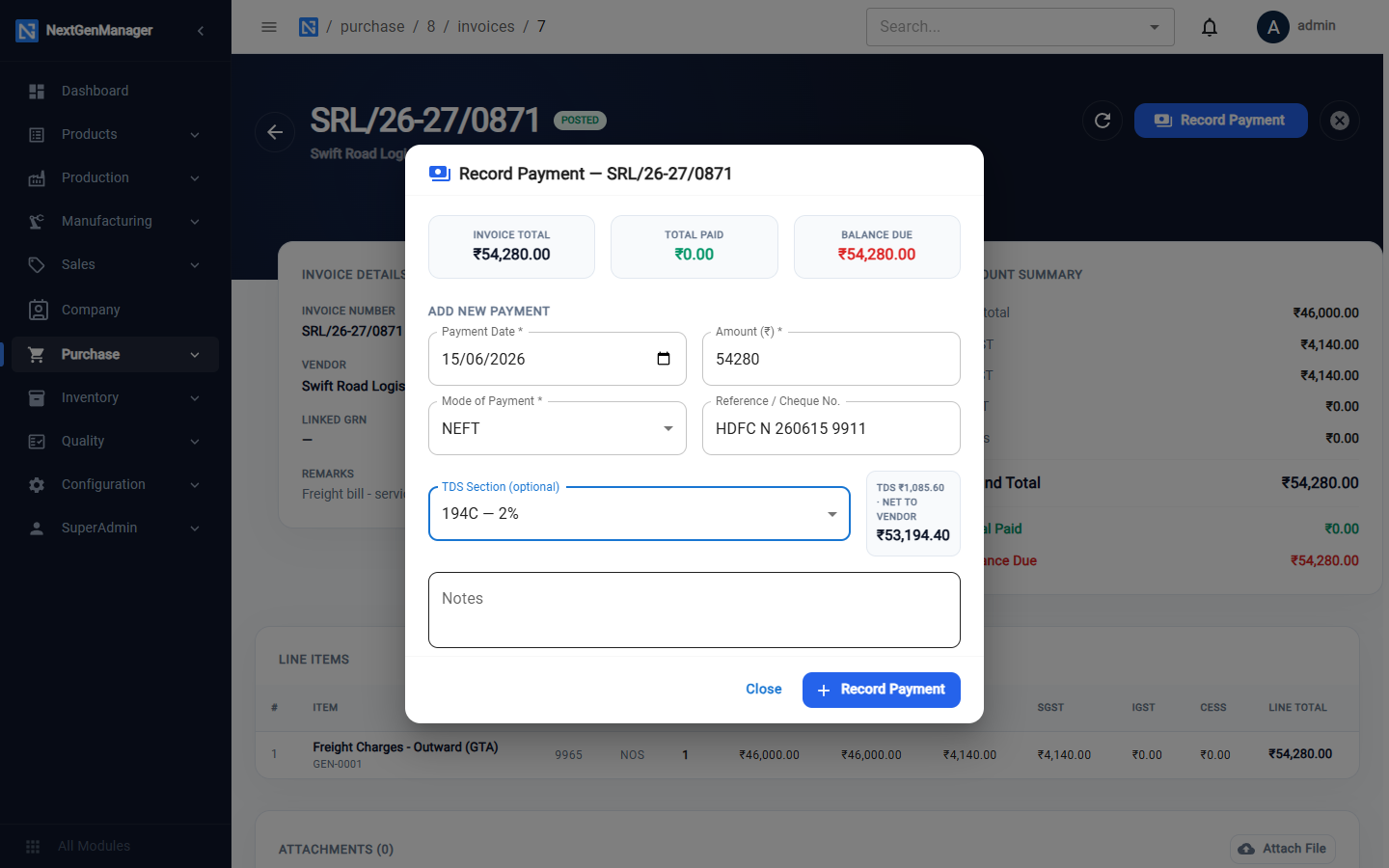
| TDS Section | No TDS, or the section to deduct under — see TDS |
| Notes | Optional |
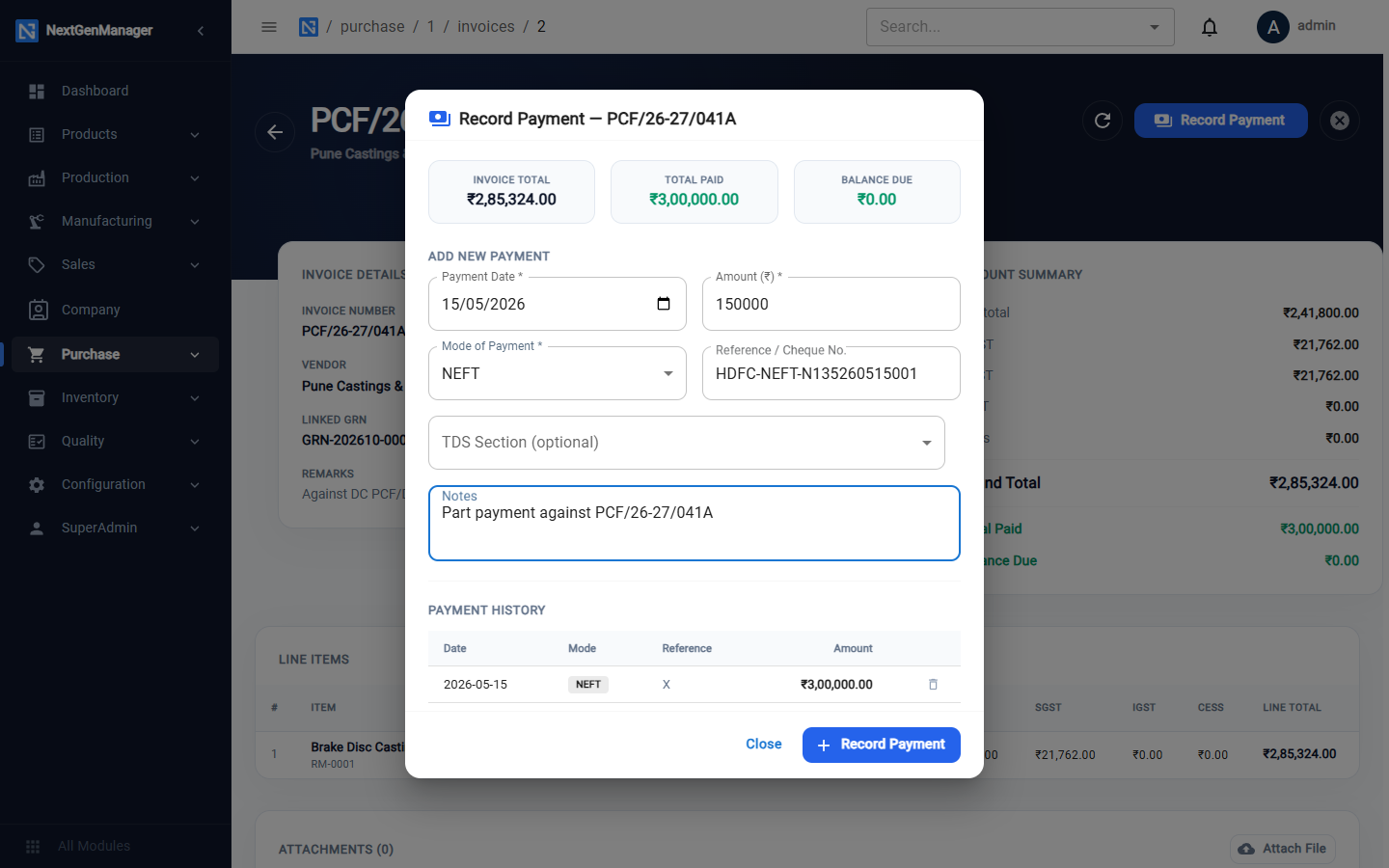
Saving posts a payment voucher (PAY/…) on the payment date: the vendor is debited and the bank is
credited. The payment appears under Payment History on the invoice. If you delete a payment from
the history, its voucher is reversed and the two cancel out in every report.
:::note A payment cannot exceed the balance A payment larger than the Balance Due is refused with a message that shows the balance. :::
Paying with TDS
Choose the TDS Section when recording the payment. The tax is worked out on the taxable value of the bill, deducted from what is paid to the vendor and held in TDS Payable until you deposit it.
Bills for services
For freight, professional fees and other services, raise a purchase order of type SERVICE with a product-master item for the service, then record and post the vendor's invoice the same way. There is no goods receipt for a service order.