Picking, packing and dispatch
Goods leave the warehouse in three steps.
| Step | Document | Where |
|---|---|---|
| 1. Pick | Pick list PK/0001 | Inventory → Pick Lists |
| 2. Pack | Packing slip PS/0001 | Inventory → Packing Slips |
| 3. Ship | Delivery challan DC/2026/0001 | Sales → Delivery Challans |
Before you start, the sales order must be Approved and stores must have allocated the stock (see Material requests).
1. Pick
The Picking Desk
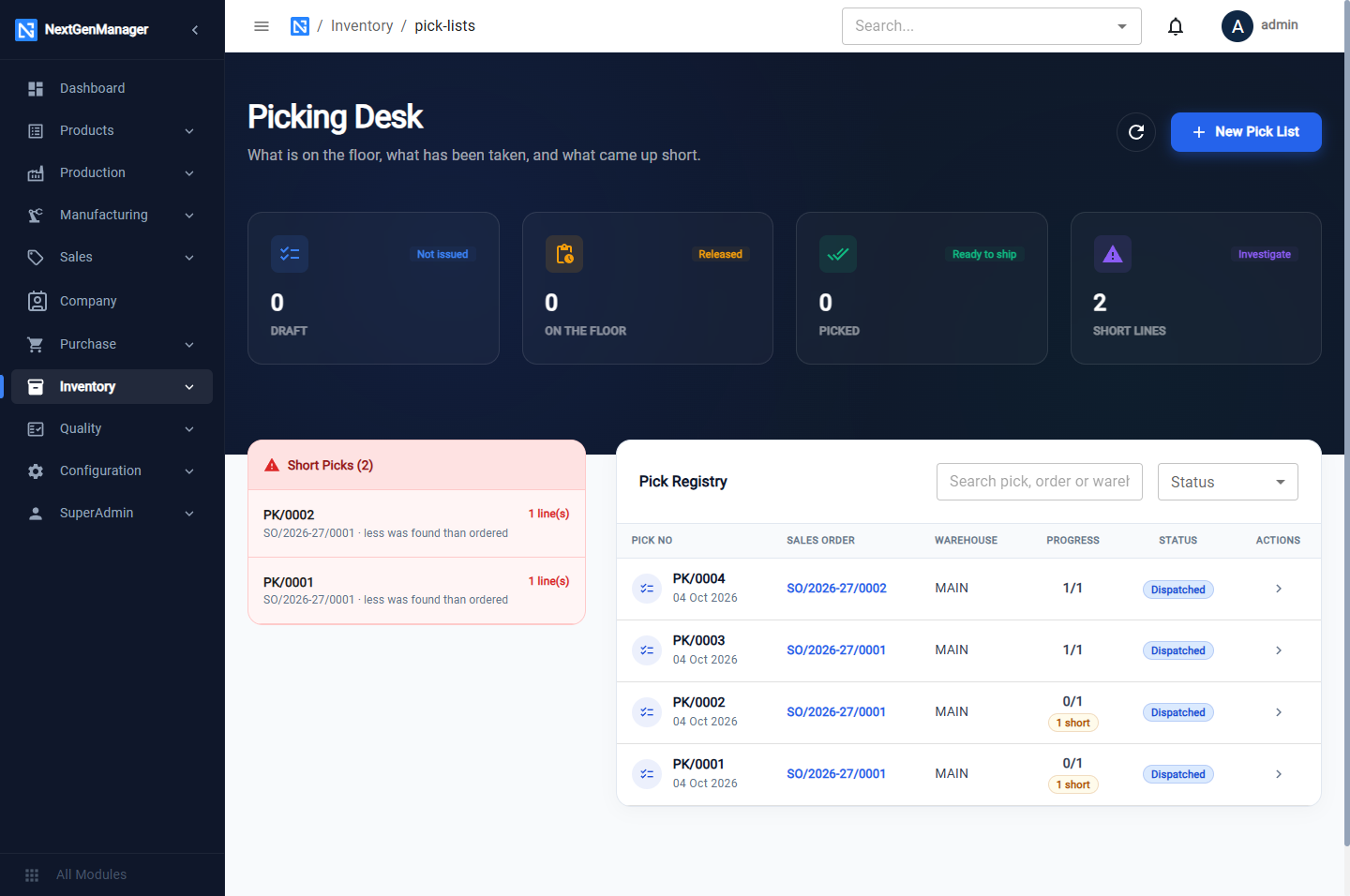
Tiles count pick lists in Draft, On the Floor, Picked and with Short Lines. Short picks are listed on the left.
Create a pick list
Click New Pick List.
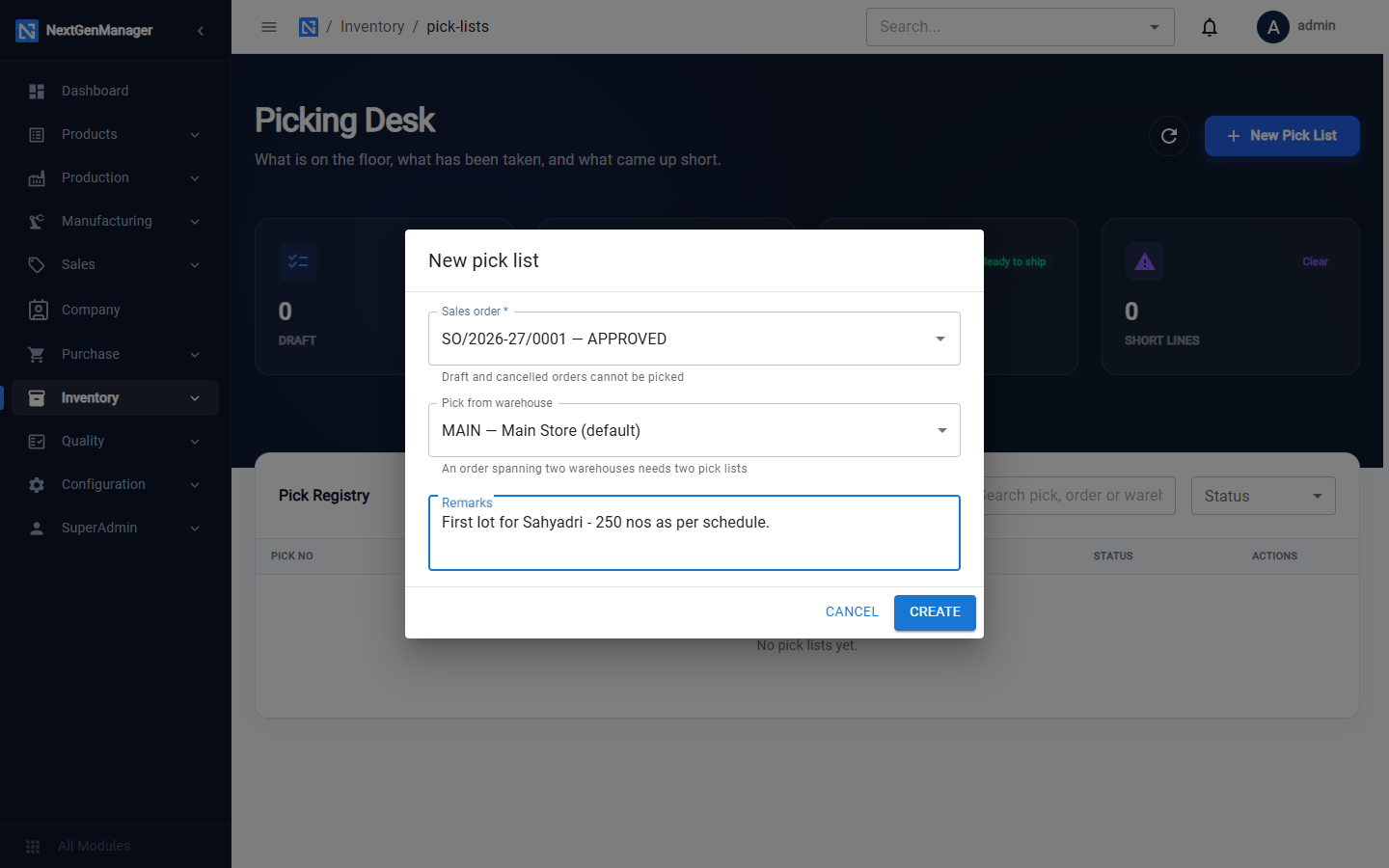
| Field | Notes |
|---|---|
| Sales order | Only approved orders are offered |
| Pick from warehouse | The warehouse to pick from |
| Remarks | For example which lot to send |
Click Create. The pick list is a Draft.
Release and confirm
- Click Release. The list is now on the floor.
- When the goods have been taken from the shelves, click Confirm Pick.
- Enter Picked by and, for each line, the quantity Picked.
- For a batch-tracked or serial-tracked product, leave Units blank and the oldest suitable units are picked for you (those reserved for this order line first). You can still type the ids of specific units, separated by commas.
- Click Confirm Pick.
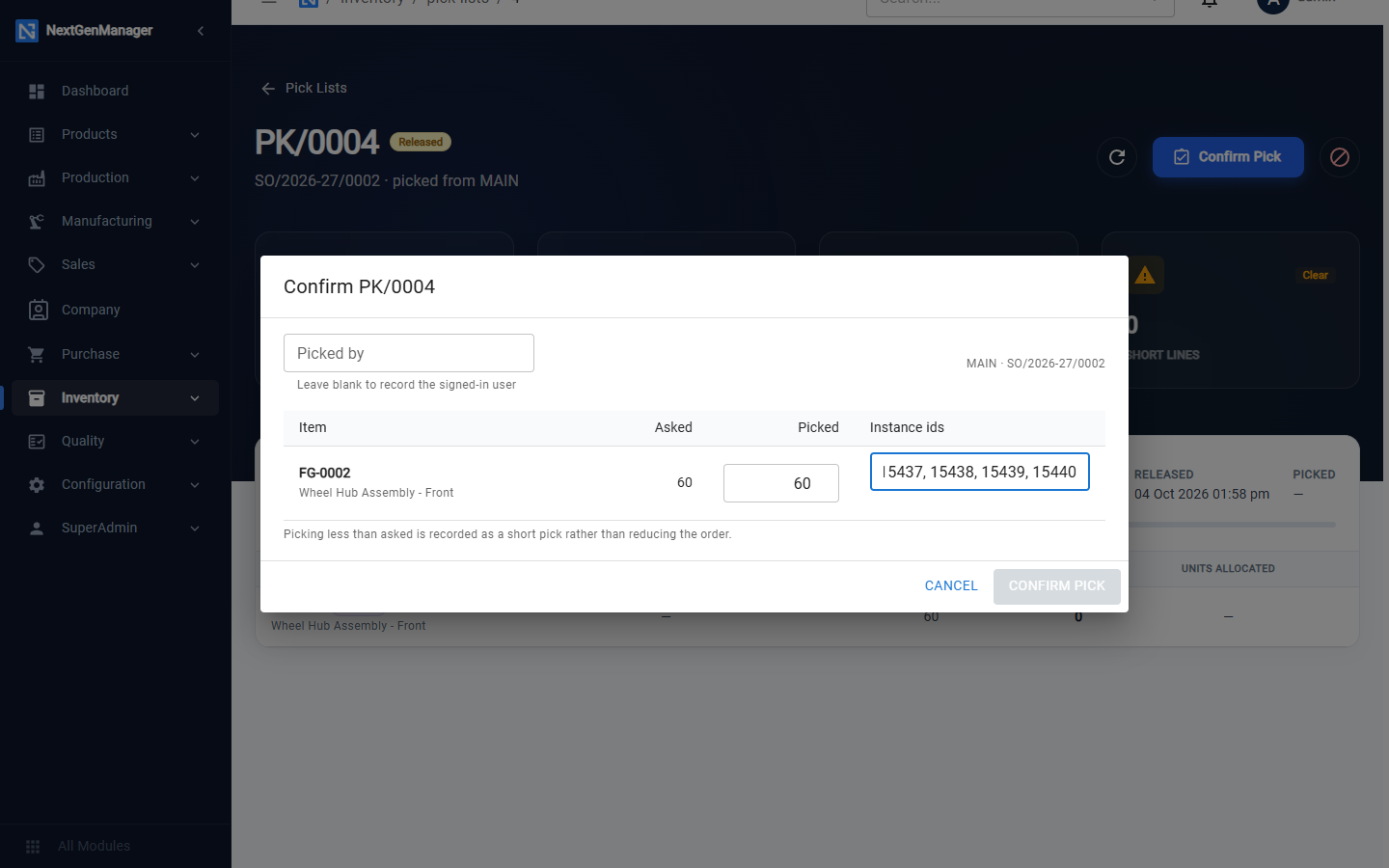
If you pick less than was asked, the line is recorded as a short pick. The order quantity is not reduced; a later pick list will ask only for the remainder.
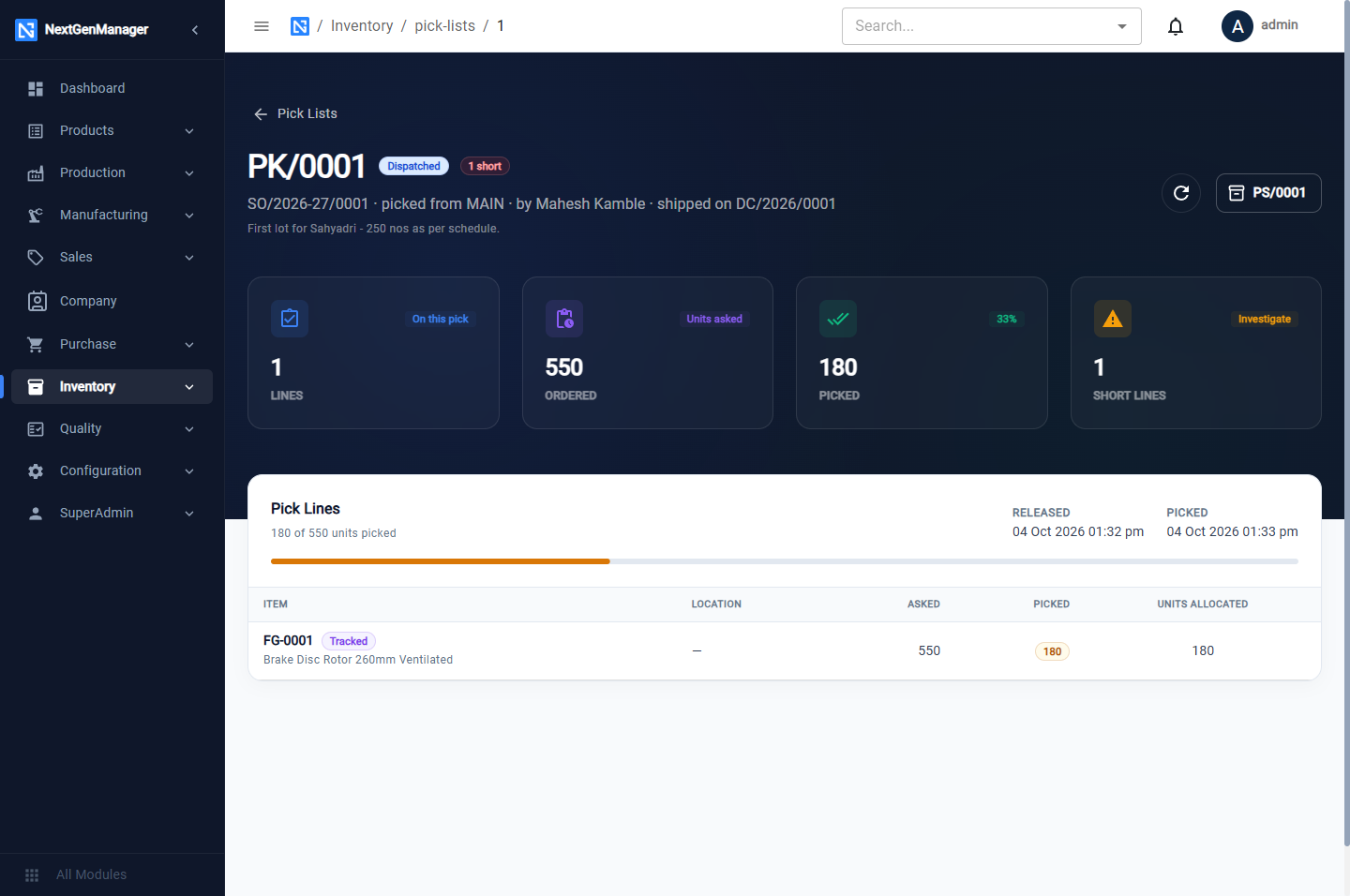
From a picked list, click Pack to go on, or Create Delivery Note to ship without packing details.
2. Pack
The Packing Desk
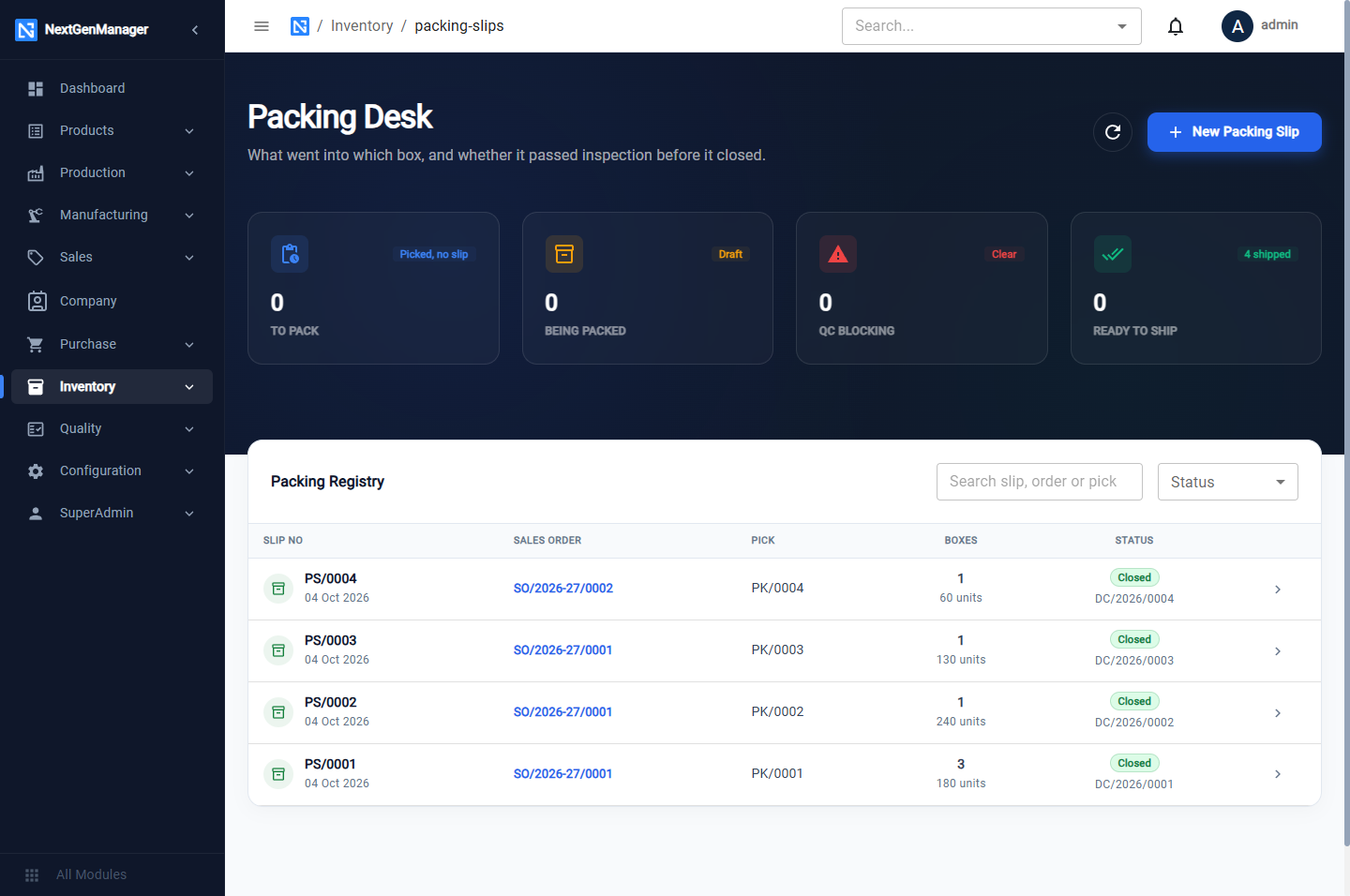
A packing slip packs exactly one pick list.
Add boxes
Click Add Box.
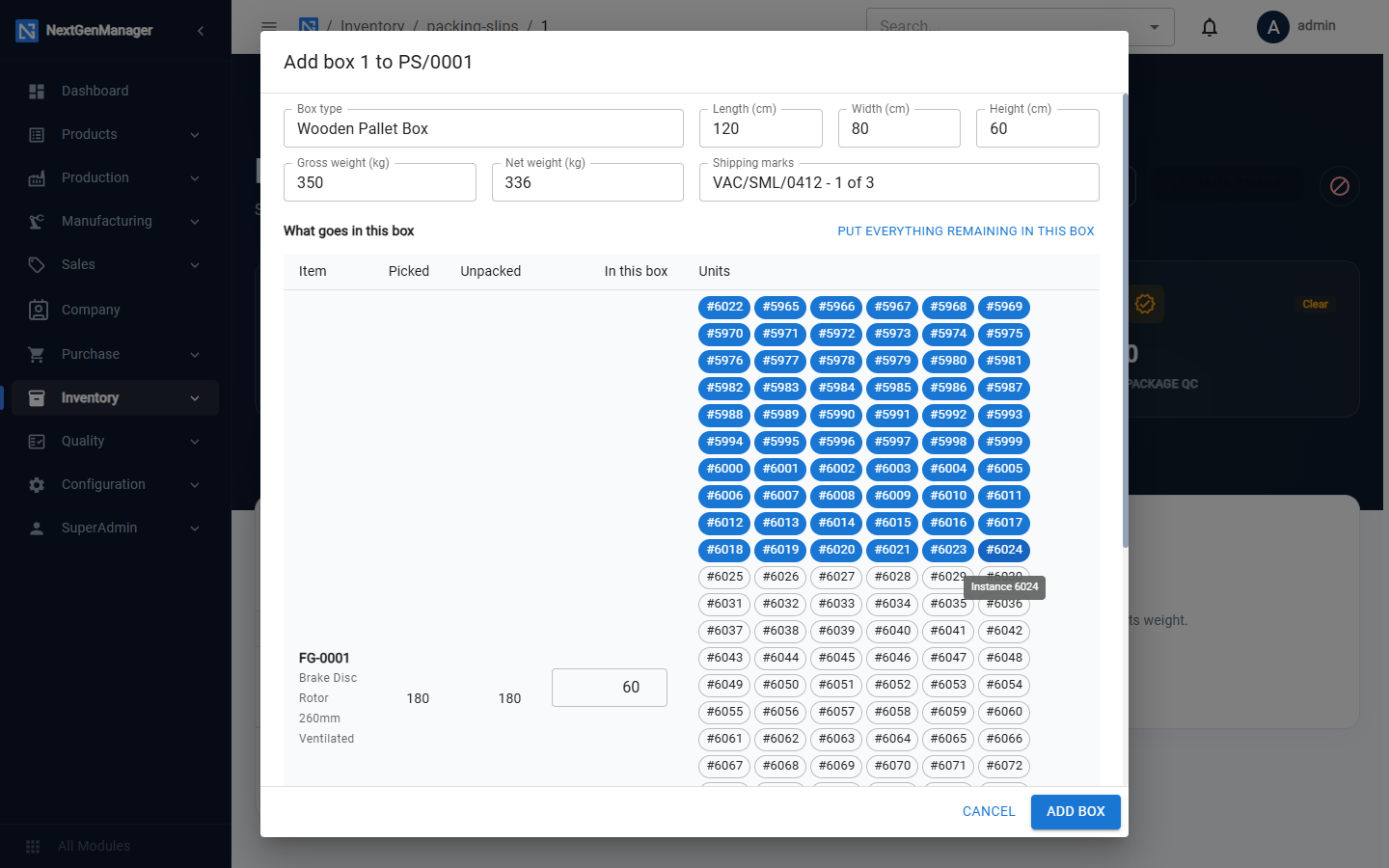
| Field | Notes |
|---|---|
| Box type | Carton, Wooden Pallet Box… |
| Length, Width, Height (cm) | |
| Gross weight, Net weight (kg) | |
| Shipping marks | What is written on the box, for example VAC/SML/0412 - 1 of 3 |
| What goes in this box | Enter the quantity and tap the units, or click Put everything remaining in this box |
The units you tap must add up to the quantity you entered. Click Add Box. Repeat until everything picked is in a box.
Inspect a box
To have a box checked before it leaves, click Inspect on the box. Choose the item and the quantity offered.
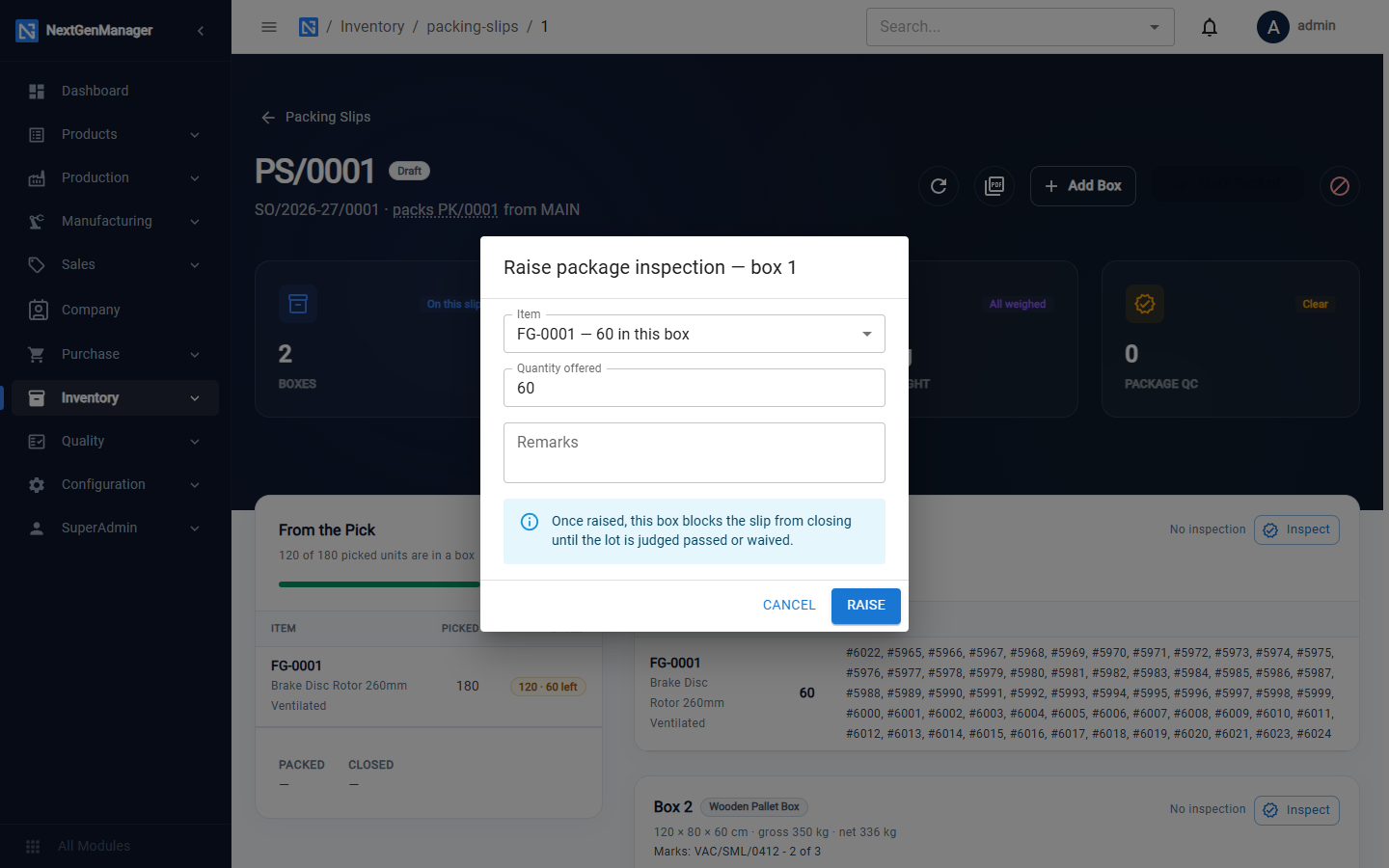
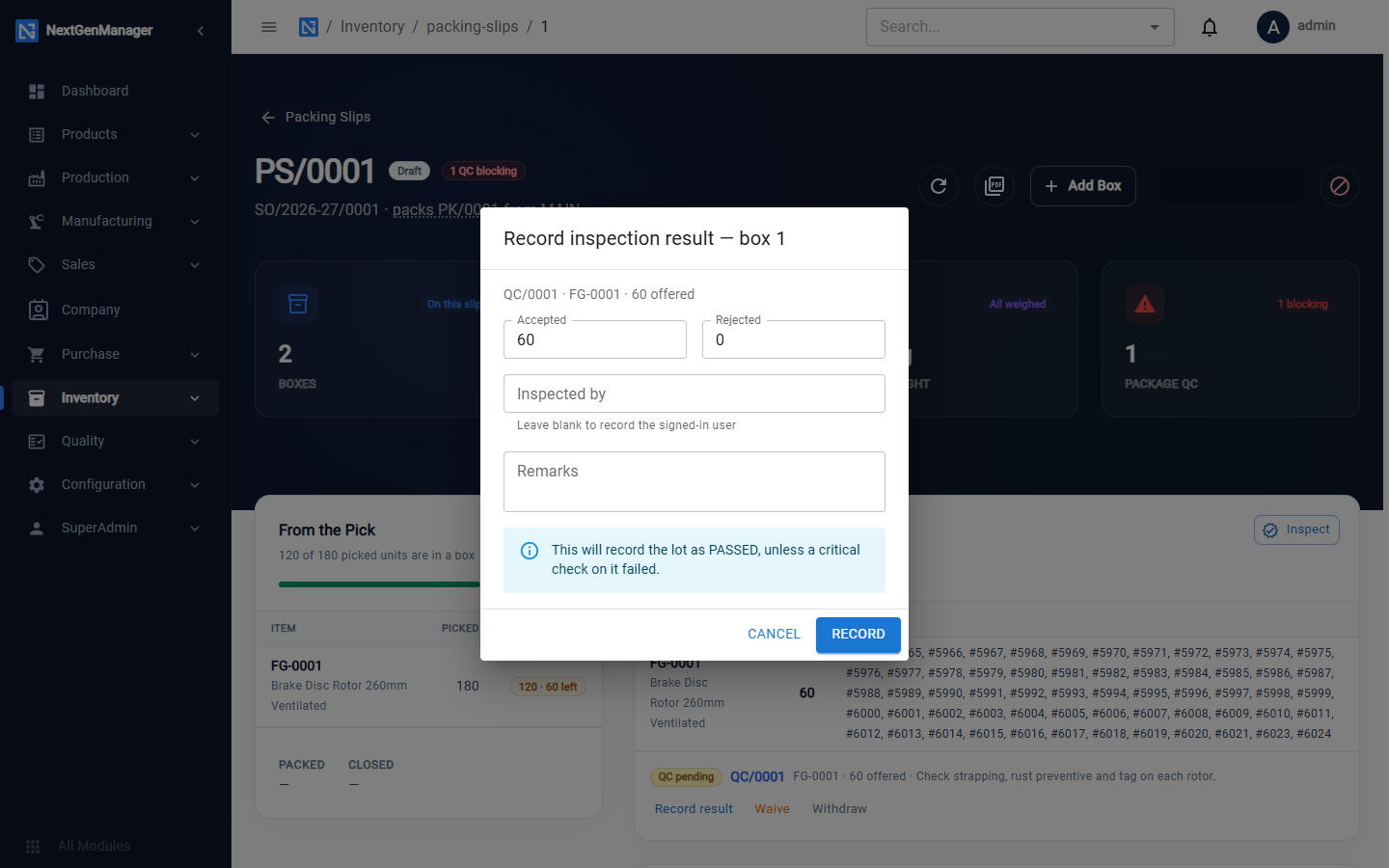
This raises an inspection lot. Once raised, this box blocks the slip from closing until the lot is judged passed or waived. Record the result from the slip or from the Quality Desk.
Mark packed and close
- Mark Packed — allowed only when every picked unit is in a box.
- Close Slip — the slip is finished and ready to ship.
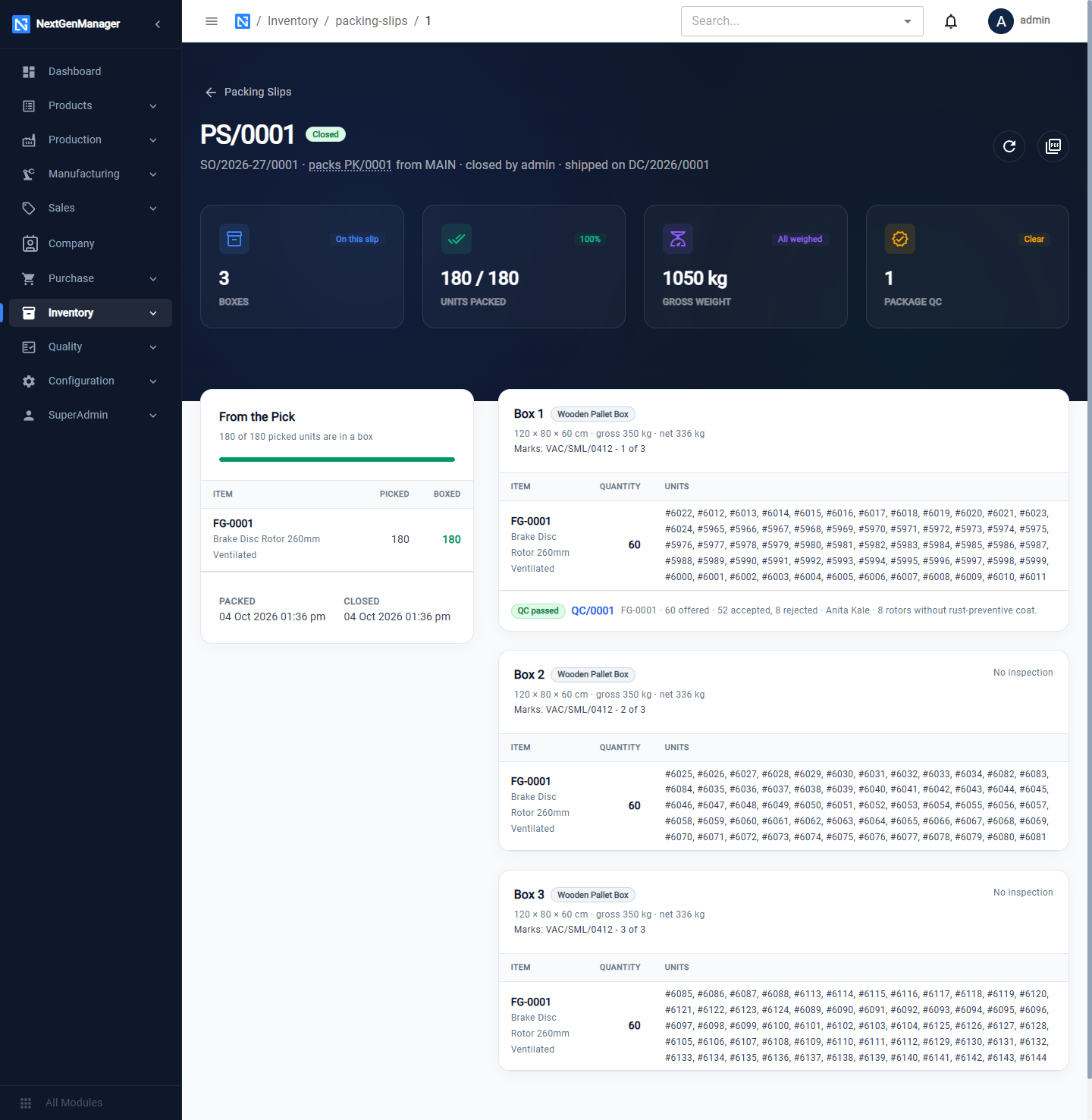
The tiles show the number of boxes, units packed, gross weight and package inspections. Download packing list gives the PDF.
3. Ship: the delivery challan
On a closed packing slip click Create Delivery Note. (You can also start from Create Dispatch on the sales order.)
The quantities come from the pick and cannot be changed here. Enter:
| Field | Notes |
|---|---|
| Challan No | Optional; leave blank for an automatic number |
| Transporter Name, Vehicle Number | |
| LR / Consignment No | |
| Dispatch Date | |
| E-Way Bill Number | |
| Dispatch Through |
Click Issue Challan.
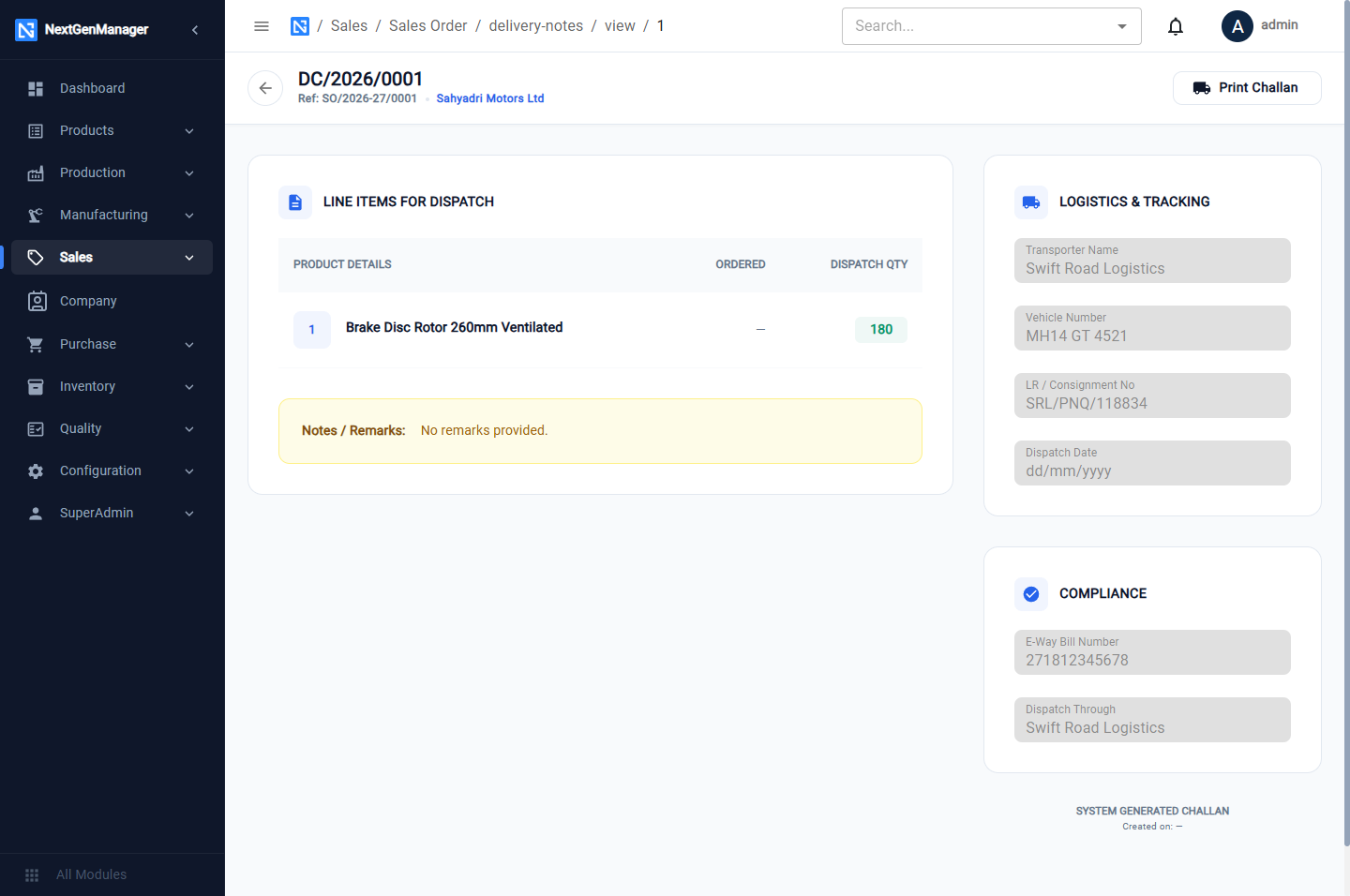
Issuing the challan takes the goods out of stock and books their cost to Cost of Goods Sold. The sales order becomes Partially Dispatched or Fully Dispatched. Print Challan prints the document that travels with the goods.
The challan register
Sales → Delivery Challans lists every challan with its order, transporter and vehicle.
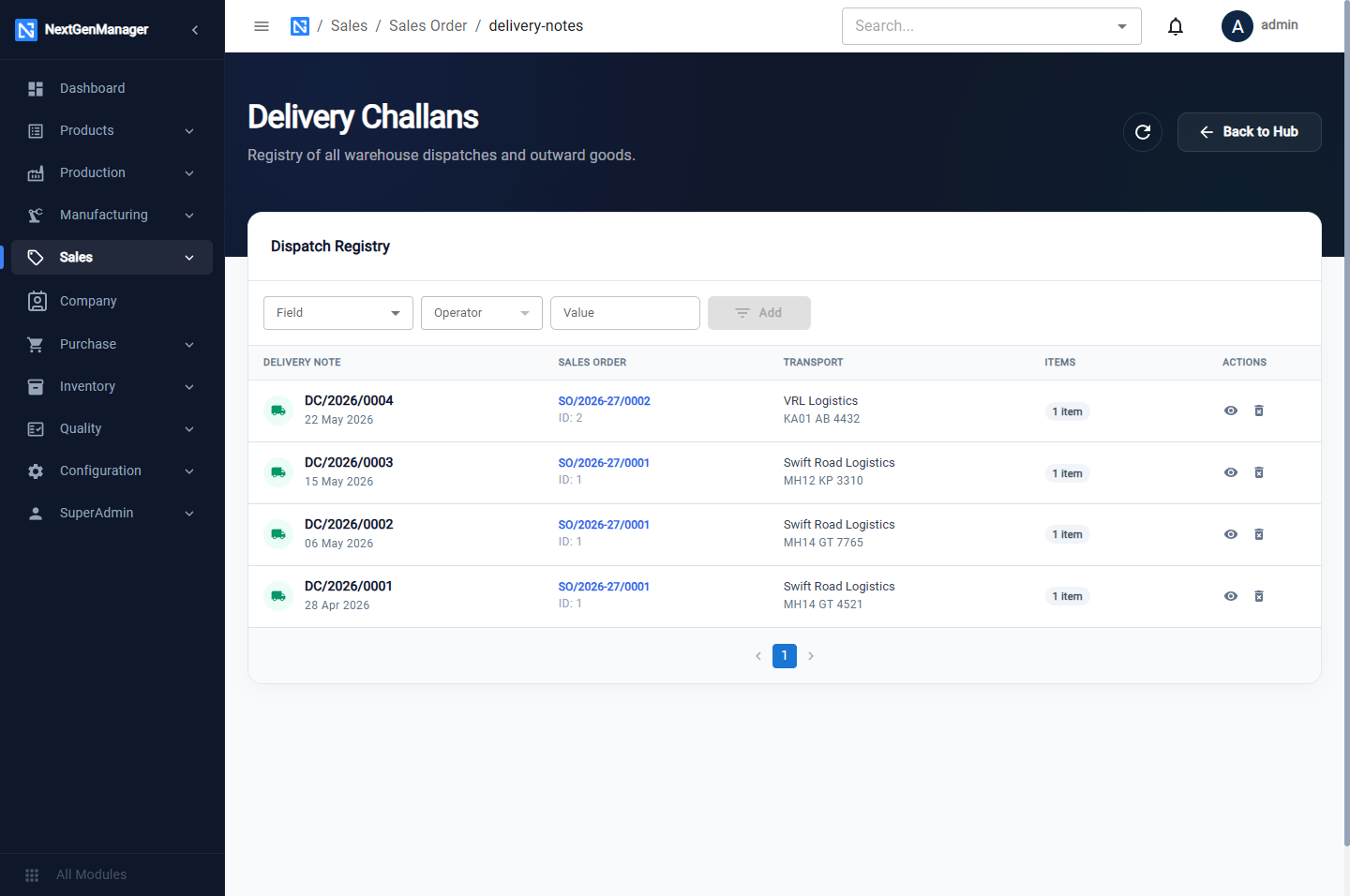
Sending an order in several lots
Create a pick list for the quantity going now. The next pick list for the same order asks only for what is left. Each lot gets its own pick list, packing slip and challan.