Sales orders
Where: Operations → Sales → Sales Orders.
The Sales Command Center
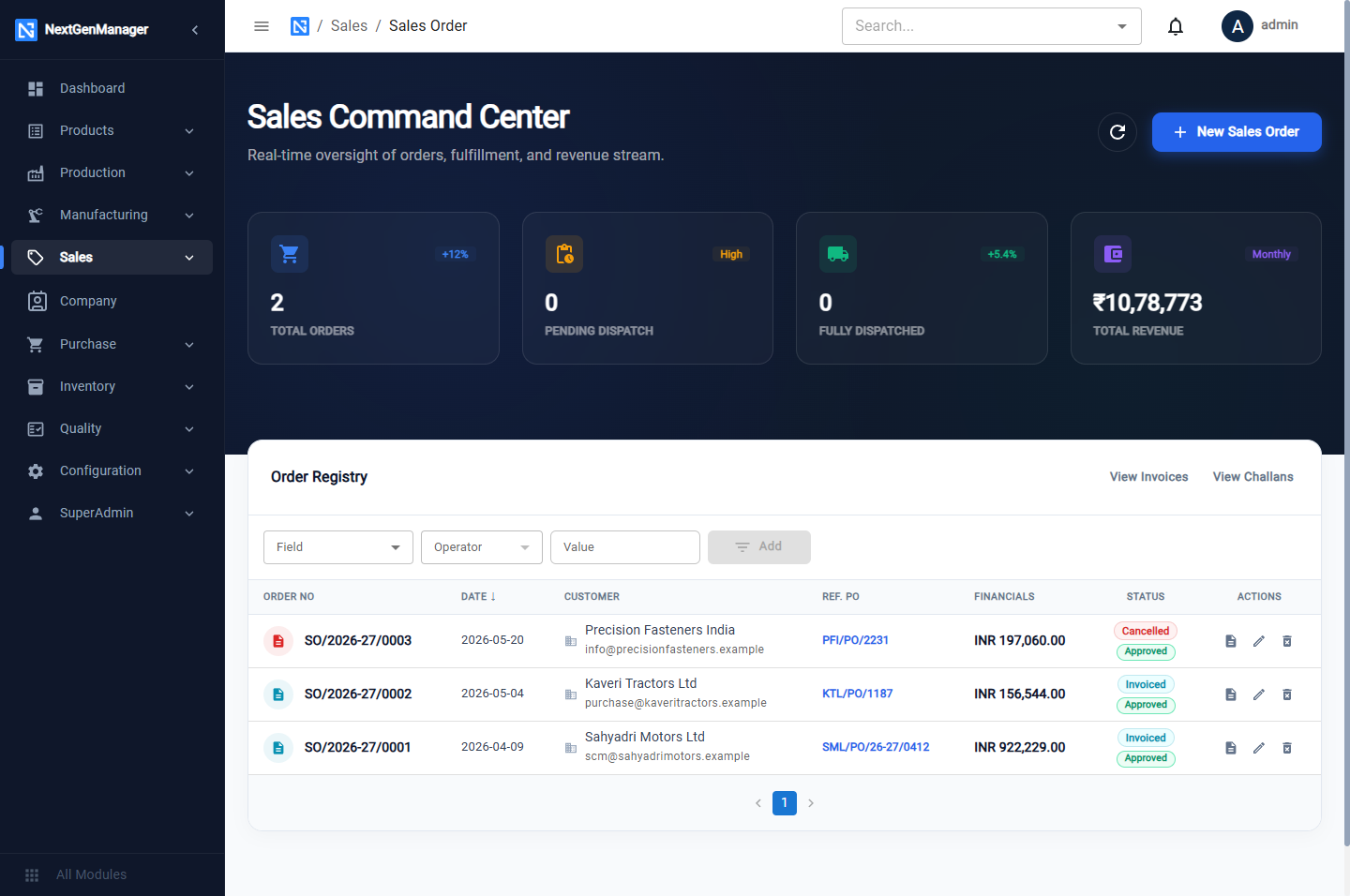
Tiles: Total Orders, Pending Dispatch, Fully Dispatched, Total Revenue (order value including GST). View Invoices and View Challans jump to those registers. Each row has buttons to open the PDF, edit and delete.
Create a sales order
Click New Sales Order, or convert an accepted quotation.
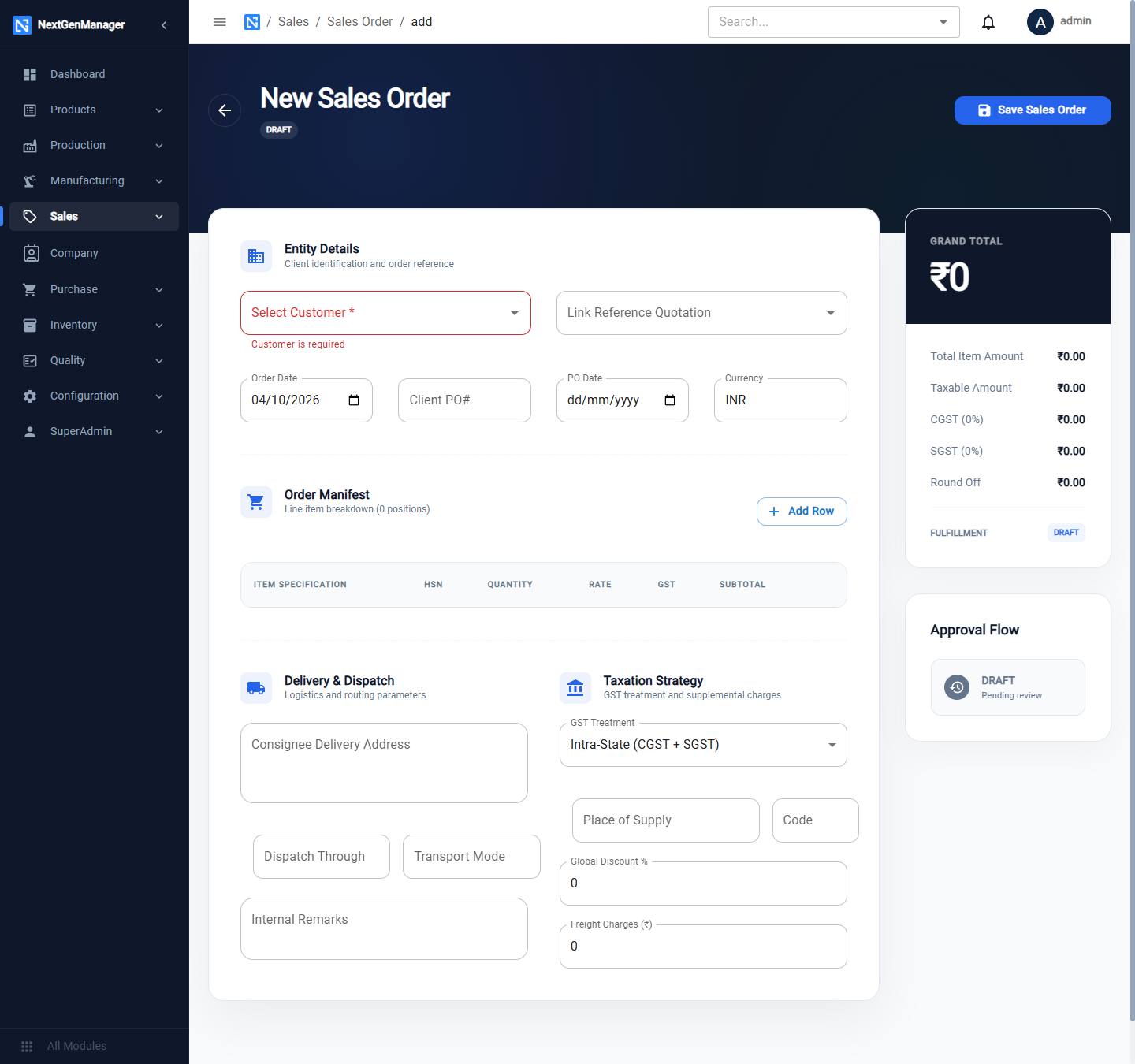
Entity Details
| Field | Notes |
|---|---|
| Select Customer | Required |
| Link Reference Quotation | The quotation this order follows |
| Order Date | Today by default |
| Client PO#, PO Date | The customer's purchase order |
| Currency | INR by default |
Order Manifest — click Add Row for each line and choose the product. Its HSN, rate and GST fill in; enter the Quantity and adjust the Rate or GST if needed.
Delivery & Dispatch — Consignee Delivery Address (from the customer), Dispatch Through, Transport Mode, Internal Remarks.
Taxation Strategy
| Field | Notes |
|---|---|
| GST Treatment | Intra-State (CGST + SGST) for a customer in your state, Inter-State (IGST) for another state |
| Place of Supply, Code | The customer's state |
| Global Discount % | Applied to the whole order |
| Freight Charges | Added to the taxable amount |
The cards on the right show the Grand Total with its breakdown, the fulfilment status, Gross Profit and margin, and the Approval Flow.
Click Save Sales Order. The order is numbered SO/2026-27/0001 and is a DRAFT.
Approve the order
-
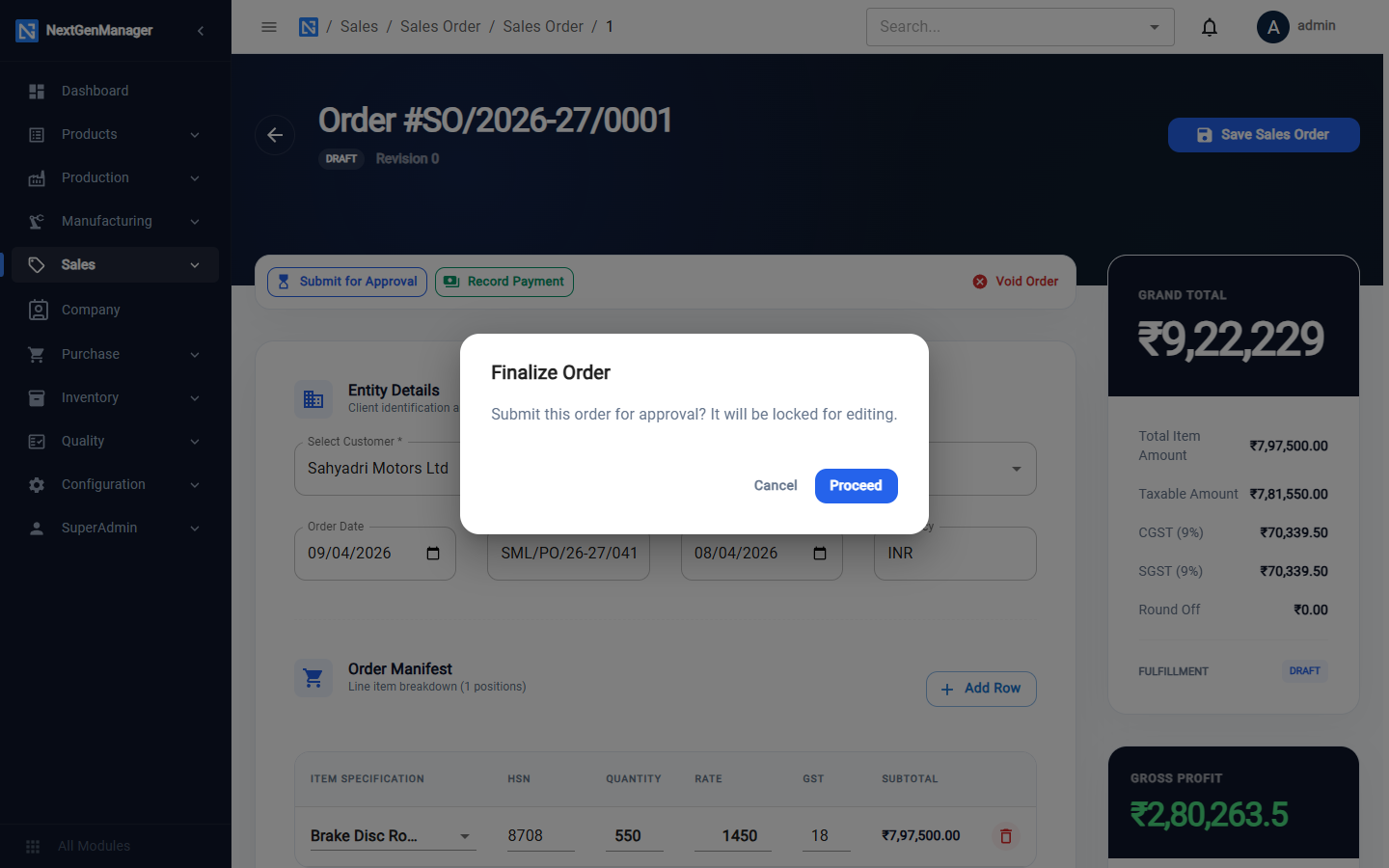
Click Submit for Approval. The order will be locked for editing.
-
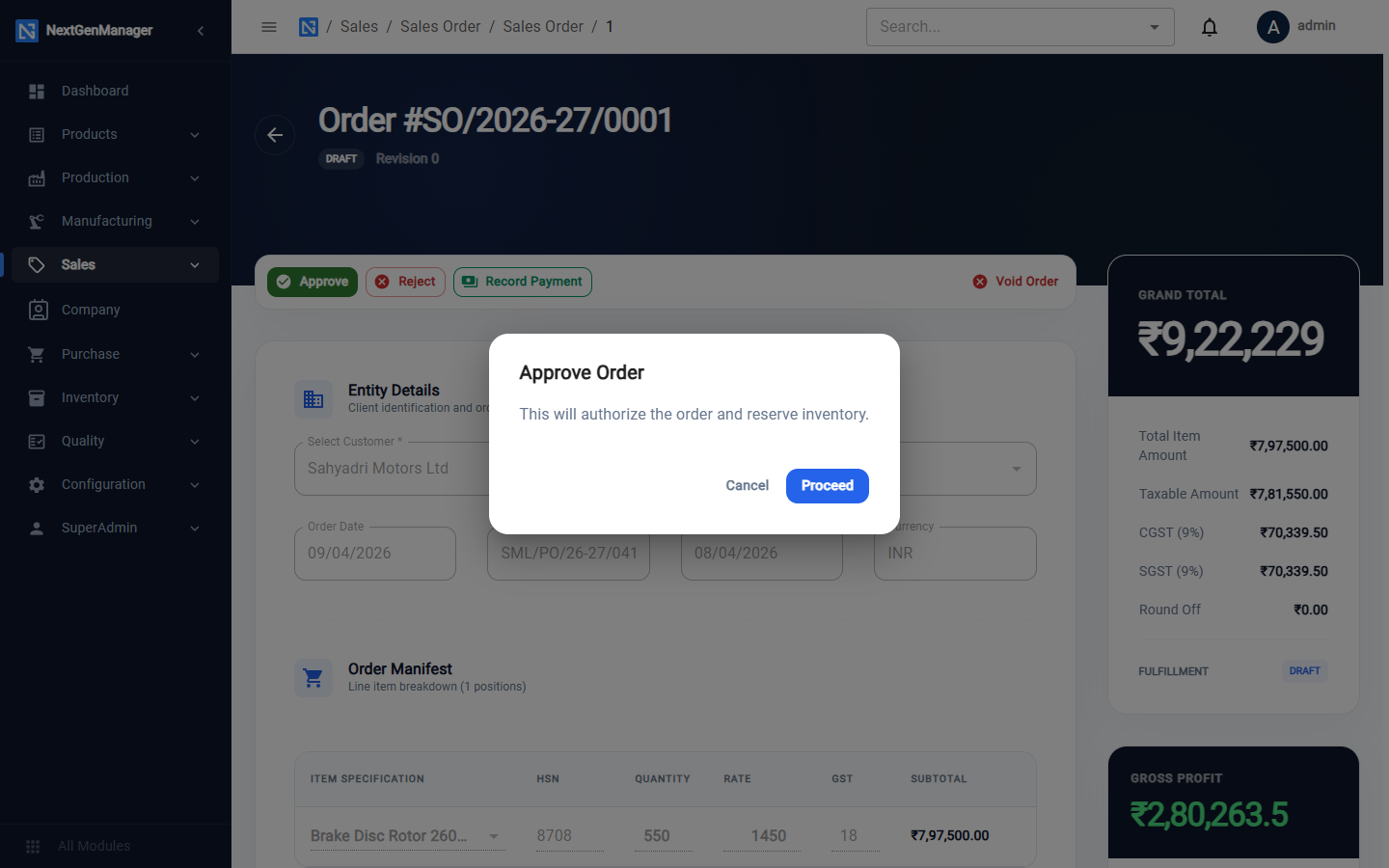
The approver clicks Approve — this will authorize the order and reserve inventory — or Reject with a reason.
What approval sets in motion
When an order is approved the system looks at each line:
- if stock is available, a request goes to stores to allocate it — stores must click Approve & Allocate under Material requests before it can be picked;
- if stock is short, a work order or a purchase requisition may be raised automatically, depending on the product's settings. See Planning.
An approved order
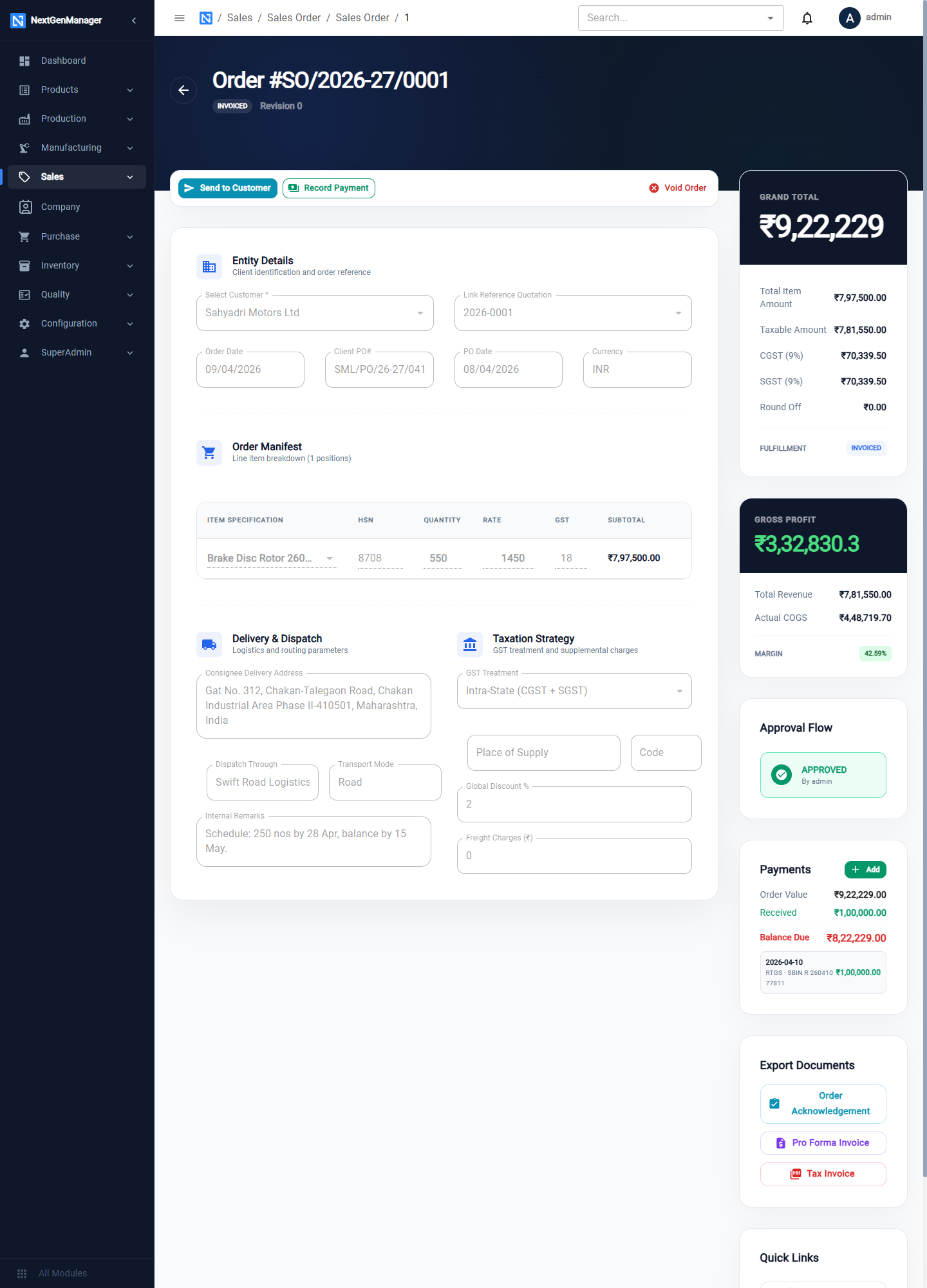
| Button | What it does |
|---|---|
| Send to Customer | Send the order acknowledgement |
| Create Dispatch | Start a delivery challan — see Picking, packing and dispatch |
| Create Invoice | Raise the tax invoice — see Invoices and credit notes |
| Record Payment | Record money received from the customer |
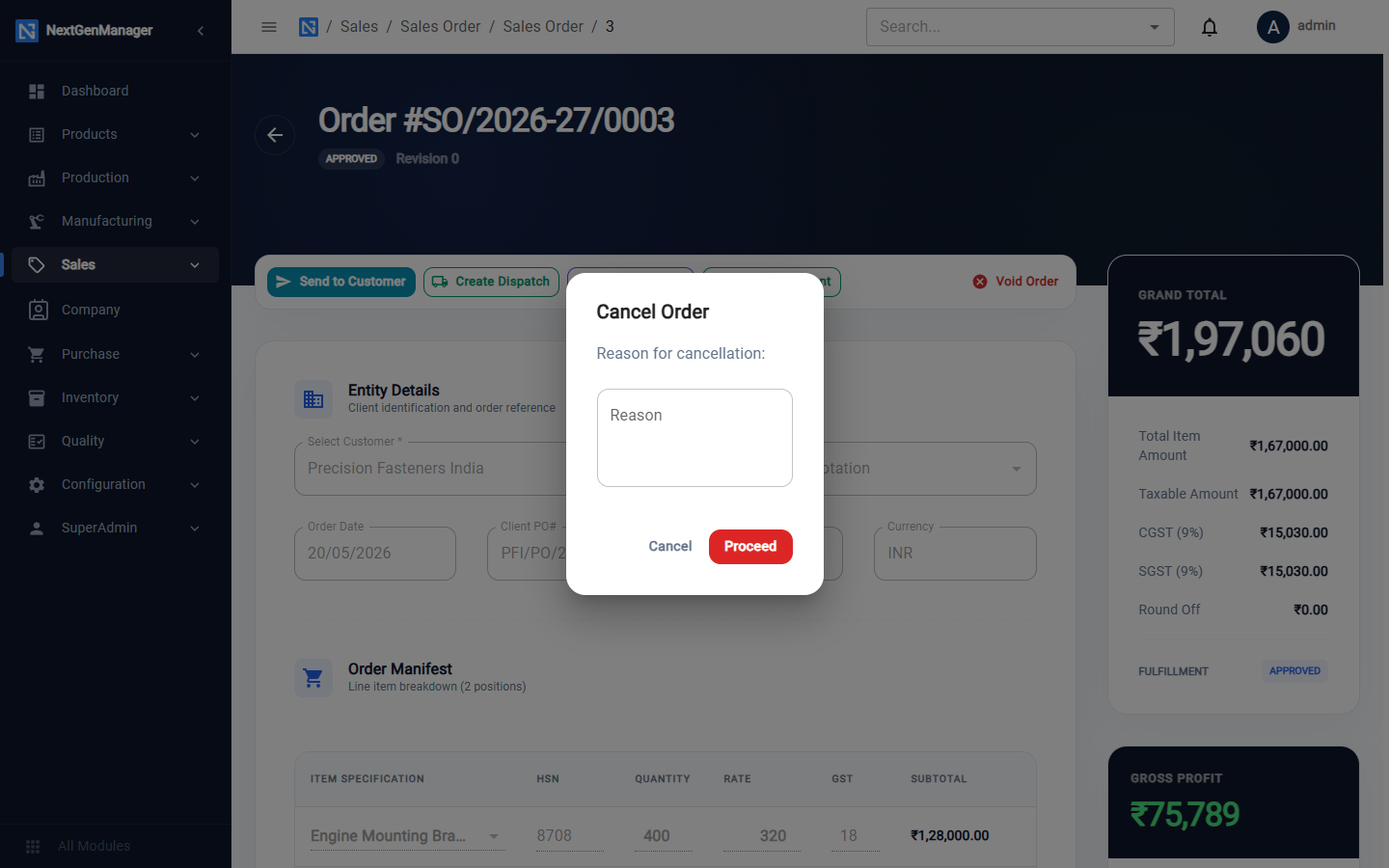
| Void Order | Cancel the order |
Further down the right-hand side are Payments, Export Documents (Order Acknowledgement, Pro Forma Invoice and Tax Invoice as PDFs) and Quick Links to the order's invoices and challans.
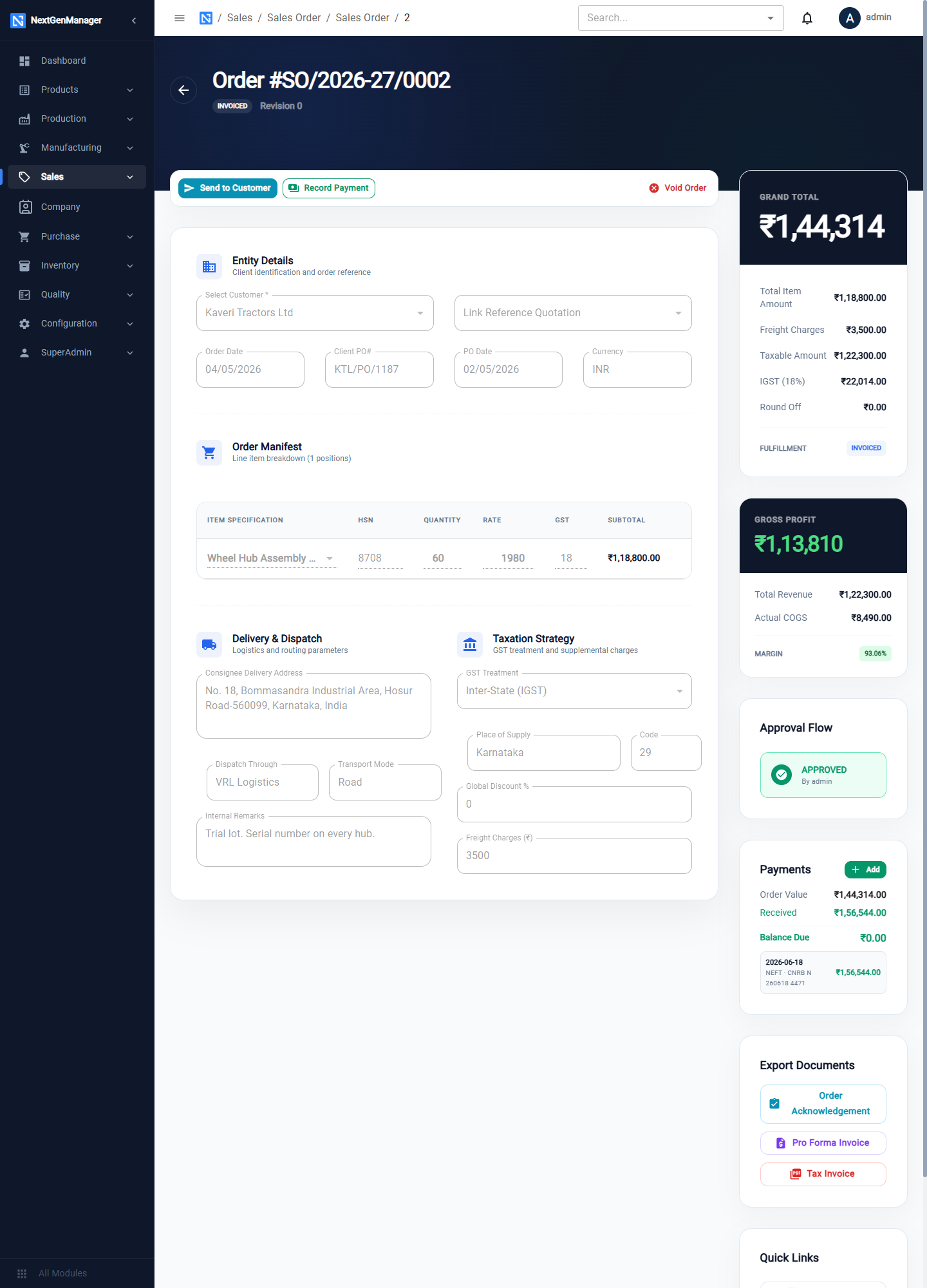
An inter-state order shows IGST in place of CGST and SGST:
Statuses
| Status | Meaning |
|---|---|
| DRAFT | Being prepared |
| PENDING APPROVAL | Submitted and locked |
| APPROVED | Authorised; stock reserved or being arranged |
| PARTIALLY DISPATCHED | Some of the quantity has shipped |
| FULLY DISPATCHED | Everything has shipped |
| INVOICED | The tax invoice has been raised |
| CANCELLED | Voided |
Record a customer payment
Click Record Payment on the order. The box shows the Order Value, Total Received and Balance Due.
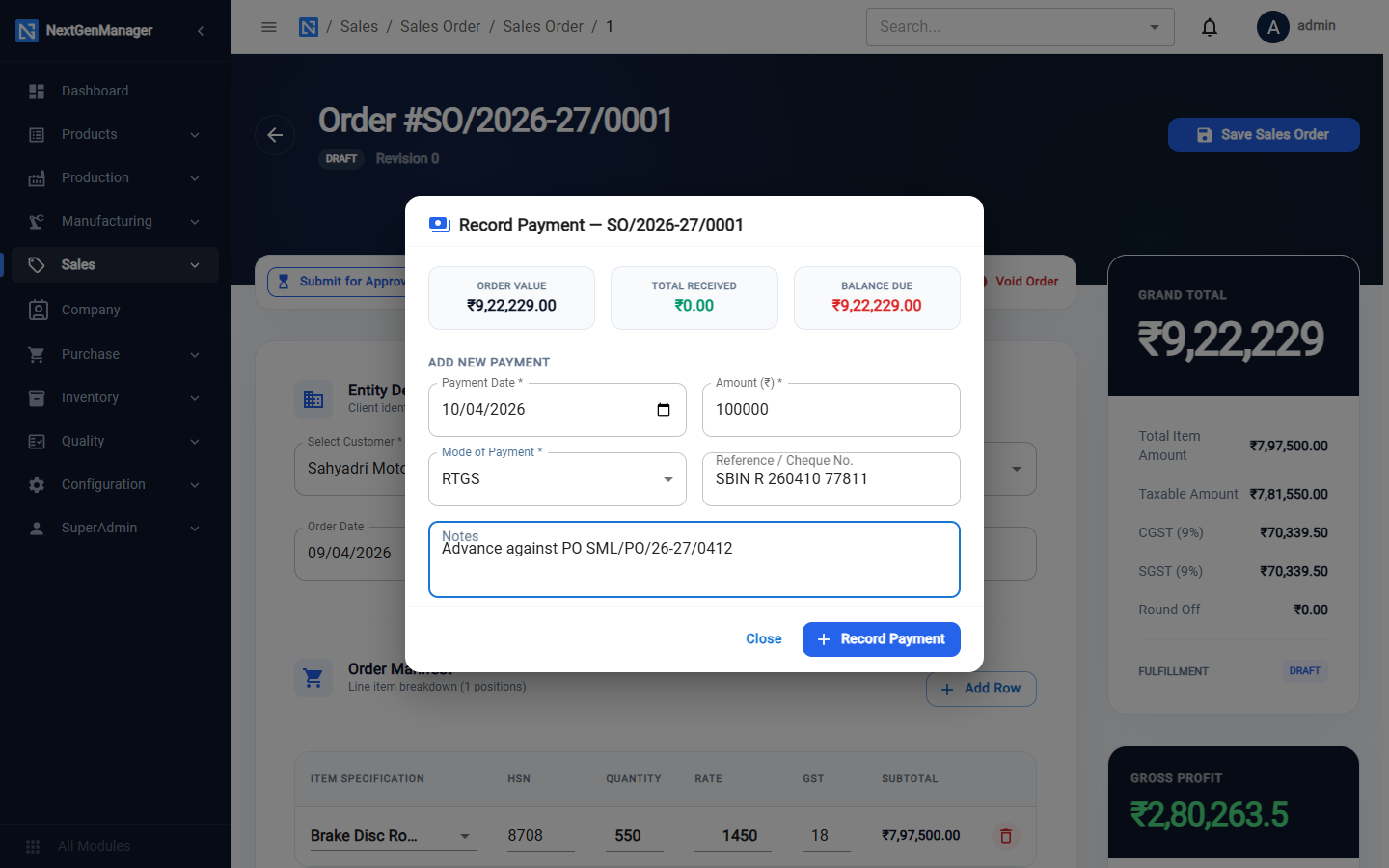
| Field | Notes |
|---|---|
| Payment Date | When the money arrived |
| Amount | An advance, a part payment or the full balance |
| Mode of Payment | Cash, Cheque, NEFT, RTGS, UPI or Other |
| Reference / Cheque No. | The bank reference |
| Notes | Optional |
Click Record Payment. A receipt voucher (REC/…) is posted: the bank is debited and the
customer is credited.
:::note A receipt cannot exceed the balance A payment larger than the order's Balance Due is refused with a message that shows the balance. Deleting a payment reverses its receipt voucher, so the bank and the customer's account return to where they were. :::
Void an order
Click Void Order, give the reason and confirm. The order becomes CANCELLED and the stock that was reserved for it is released.